Introduction to eBPF for Windows

In the Linux world, the eBPF technology has been around for years. Its purpose is to allow writing programs that run within the Linux kernel. However, contrary to standard kernel modules, eBPF runs in a constrained environment, its API is limited as to not hurt the kernel. Furthermore, every eBPF program must be verified before it’s allowed to execute, to ensure it’s safe (like memory safety, no infinite loops, and more) and cannot cause any damage to the system.

Microsoft began a project a few years ago, openly worked on Github to create a Windows version of eBPF. We all know there is an inherent risk running kernel drivers on Windows – any such driver can compromise the system in all sorts of ways, not to mention crashing it (“Blue Screen of Death“), as was painfully evident in the CrowdStrike incident on July 19, 2024. Kernel drivers cannot just go away, however. The best Microsoft can do is make every effort to ensure reliability and quality of kernel drivers. eBPF just might be a good step in that direction, as it does not allow unconstrained access to kernel APIs.

(eBPF stands for “Extended Berkley Packet Filter”, the original usage of the technology. eBPF does not stand for anything now, because its usage goes beyond network packet filtering. Look for more information online or in the book “Learning eBPF” by Liz Rice about the origins of eBPF).

The Readme file in the root of the eBPF-for-Windows repository does a good job of explaining the eBPF architecture on Windows, and how to get started. In this post, I’d like to show an example of building an eBPF program, running it, and observing the results.

Disclaimer: This post is based on my (limited) experience with eBPF for Windows.

Getting Started

There are a couple of ways to get started with eBPF on Windows, the simplest being using the MSI installer provided as part of the Releases. At the time of writing, version 0.20 is the latest one. You can grab an MSI for your VM’s platform, or even grab the full directory (Debug or Release) with all build artifacts as through you have built it yourself. This is useful for debugging purposes (PDB files are provided), and also having all the samples and tests available is beneficial if you’d like to learn more. Here, I’m going to go with the MSI for simplicity.

You will need a Virtual Machine that is configured to run in test signing mode, so that the eBPF drivers themselves (and your programs, for that matter) are able to load without being signed by a trusted certificate. Use the following elevated command line to get into test signing mode (restart is required):

bcdedit /set testsigning on

Now you can install the MSI, which presents a classic Windows installation experience – just click Next on every page.

Writing an eBPF Program

eBPF programs are classically written in C, although other options are available today (Rust, Python, …); I’ll stick with C. An eBPF program is compiled to an intermediate language, leveraging an eBPF virtual machine. This allows eBPF compiled code to be generic, based on a virtual CPU, so that it can later be compiled to the actual target processor on the system. Two modes are available for this: JIT and Native. With JIT, some entity compiles the eBPF byte code before the first invocation – this could be part of the kernel, or some entity running in user mode that then pushes the resulting code to the kernel.

The eBPF for Windows implementation provides a user-mode service that can JIT-compile eBPF byte code (provided as an ELF object file) and then pushing the result to the kernel. This JIT mode, however, is currently being deprecated, so may or may not be supported in the future. The other option is Native – the byte code is compiled to the target machine and generates a normal PE, which is in fact a kernel driver. Verification is also performed at this stage, where compilation fails if verification fails.

The details of exactly how all this works is beyond the scope of this post. The documentation in the eBPF-for-Windows repo should shed more light on the details. I may provide more information in a future post.

To actually write the eBPF program, we could use any editor, and use the clang compiler to generate the eBPF byte code, wrapped in an ELF binary file (eBPF-for-Windows tries to be as compatible as possible to the Linux way of working, so uses clang that compiles to an ELF file, not a PE). We can certainly go down that route, but to make things somewhat easier, I will be using Visual Studio and Nuget to simplify getting the required header files and libraries.

Creating the Project

We create a new C++ console application, as there is no eBPF or similar template available. We could also write normal C++ code to load the program into the kernel (once properly compiled), but I’m not going to do this in this post. Instead, we’ll use the netsh tool, that has been extended with an eBPF provided DLL that allows loading programs and a few other operations. For now, let’s continue with Visual Studio. The project I created is named TraceConnections. Its purpose is going to be counting the number of TCP connect operations that occur per process.

I rename the resulting TestConnections.cpp file to TestConnection.c so we don’t use any C++ feature – eBPF supports C only. Next, we need to use eBPF specific headers and other tools – fortunately, these are available through a Nuget package. Just open the Nuget Packages window and search for “ebpf”. You’ll find 3 packages targeting x86, ARM64 and x64. Choose the package based on the target (most likely x64) and install it:

Now we can begin coding.

Writing an eBPF Program

We start with two includes, provided by the Nuget package:

#include <bpf_helpers.h>
#include <ebpf_nethooks.h>

A eBPF program starts in a function that can have any name, but must have a prototype based on the “type” of program. For our purposes, it’s a program that “binds” to network connections. We start the function like so:

SEC("bind")
bind_action_t TraceConnections(bind_md_t* ctx) {

The function name is TraceConnections, it accepts one pointer and returns an enumeration indicating whether to allow or block the connection:

typedef enum _bind_action {
    BIND_PERMIT,   ///< Permit the bind operation.
    BIND_DENY,     ///< Deny the bind operation.
    BIND_REDIRECT, ///< Change the bind endpoint.
} bind_action_t;

This gives you an idea how easy it would be to block a connection if we so desire. The accepted pointer’s type to the main function depends on the kind of “program” we write. In this case, it’s bind_md_t providing details about the connection:

typedef struct _bind_md {
    uint8_t* app_id_start;         ///< Pointer to start of App ID.
    uint8_t* app_id_end;           ///< Pointer to end of App ID.
    uint64_t process_id;           ///< Process ID.
    uint8_t socket_address[16];    ///< Socket address to bind to.
    uint8_t socket_address_length; ///< Length in bytes of the socket address.
    bind_operation_t operation;    ///< Operation to do.
    uint8_t protocol;              ///< Protocol number (e.g., IPPROTO_TCP).
} bind_md_t;

We get some basic details, like process ID, process name, and network address. The SEC macro places the code in a section called “bind”, which is one way to tell eBPF what kind of program we’re writing.

In this example, we’d like to keep track of all processes making network connections, and just count how many such connections occur. For this purpose, we can create a helper structure:

typedef struct _process_info {
	uint32_t id;
	char name[32];
	uint32_t count;
} process_info;

We’ll keep track of the process ID, an executable name, and the count itself. The next question is where is all that going to be stored?

eBPF works with the concept of maps, which you can think of as key/value pairs, where keys could be managed in multiple ways, based on the map type. To define a map, we can build a structure with some helper macros, and place any variable(s) in a section called “.maps” in the resulting ELF object file. For this example, this is the map I defined:

struct {
	__uint(type, BPF_MAP_TYPE_HASH);
	__type(key, uint32_t);
	__type(value, process_info);
	__uint(max_entries, 1024);
} proc_map SEC(".maps");

type indicates the map type (a hash table), the key is the process ID (to uniquely identify the process being tracked), value is our process_info structure. Finally, max_entries is a hint to the map implementation, as to how many items are expected. A global variable named proc_map resperesnts our map. Now we’re ready to implement the body of our function. First, we’ll look at bind to port operations only (not unbind), and we always permit the connection to continue:

SEC("bind")
bind_action_t TraceConnections(bind_md_t* ctx) {
	if (ctx->operation == BIND_OPERATION_BIND) {
	}
	return BIND_PERMIT;
}

Next, we grab the process ID, and look it up in the map. If it’s already there, just increment the count:

uint32_t pid = (uint32_t)ctx->process_id;
process_info pi = { 0 };
process_info* p = bpf_map_lookup_elem(&proc_map, &pid);
if (p) {
	p->count++;
}

If not, we need to create a new entry by populating a new process_info:

else {
	pi.id = pid;
	memcpy(pi.name, ctx->app_id_start, 
        MIN(sizeof(pi.name), ctx->app_id_end - ctx->app_id_start));
	pi.count = 1;
	p = &pi;
}

Finally, we need to update the map with the new or updated value:

bpf_map_update_elem(&proc_map, &pid, p, 0);

The arguments are (in order): the map variable, pointer to the key, pointer to the value, and flags indicating whether to update if there is already a value, or update always, etc; zero means update if exists, or create if does not exist.

That’s almost it! Just need to add a license for verification purposes (the exact details are not important for this post):

char LICENSE[] SEC("license") = "Dual BSD/GPL";

Here is the full code for easier reference:

#include <bpf_helpers.h>
#include <ebpf_nethooks.h>

#define MIN(x, y) ((x) < (y)) ? (x) : (y)

typedef struct _process_info {
	uint32_t id;
	char name[32];
	uint32_t count;
} process_info;


struct {
	__uint(type, BPF_MAP_TYPE_HASH);
	__type(key, uint32_t);
	__type(value, process_info);
	__uint(max_entries, 1024);
} proc_map SEC(".maps");

SEC("bind")
bind_action_t TraceConnections(bind_md_t* ctx) {
	if (ctx->operation == BIND_OPERATION_BIND) {
		uint32_t pid = (uint32_t)ctx->process_id;
		process_info pi = { 0 };
		process_info* p = bpf_map_lookup_elem(&proc_map, &pid);
		if (p) {
			p->count++;
		}
		else {
			pi.id = pid;
			memcpy(pi.name, ctx->app_id_start, 
                MIN(sizeof(pi.name), ctx->app_id_end - ctx->app_id_start));
			pi.count = 1;
			p = &pi;
		}
		bpf_map_update_elem(&proc_map, &pid, p, 0);

	}
	return BIND_PERMIT;
}

char LICENSE[] SEC("license") = "Dual BSD/GPL";

Compiling the Program

This is where things get a bit hairy. First, we need a clang compiler. The Visual Studio installer offers a clang compiler and related tools, but it seems it does not support an eBPF target (use clang -print-targets to verify). Installing the official LLVM (version 18.1.8 at the time of writing) toolset provides clang that supports eBPF. Make sure you add the LLVM bin path to the system PATH environment variable to make it easier to access clang (the installation wizard will offer that option for convenience).

In order to set the command line for compilation, right-click the TestConnections.c file in Solution Explorer and choose Properties. In the General tab, change the Item Type to Custom Build Tool (check all platforms and configurations so you don’t have to repeat this later):

Click OK and open the properties again so they get refreshed. Now you can edit the custom tool command line. Here is what you need:

clang.exe -target bpf -g -O2 -Werror -I"../packages/eBPF-for-Windows.x64.0.20.0/build/native/include" -c %(FileName).c -o $(OutDir)%(FileName).o
pushd $(OutDir)
powershell -NonInteractive -ExecutionPolicy Unrestricted $(SolutionDir)packages\eBPF-for-Windows.x64.0.20.0\build\native\bin\Convert-BpfToNative.ps1 -FileName %(Filename) -IncludeDir $(SolutionDir)packages\eBPF-for-Windows.x64.0.20.0\build\native\include -Platform $(Platform) -Configuration $(Configuration) -KernelMode $true
popd

Let’s break it down. The first call is to the clang compiler to compile the eBPF code to an ELF object file. -g adds debug information, which will be useful in looking into the generated code (more on that later), -target bpf is obvious, -O2 is required for certain optimizations, -Werror treats warnings as errors, so they cannot be ignored, and -I is where the helper eBPF header are located from the Nuget package.

The next step is to compile the object file to a native SYS file – making the eBPF program bundled in a driver PE file. This is where the Convert-BpfToNative cmdlet comes into play. It has some strict requirements – it does not accept a full path name, so we must switch to the object file directory before proceeding; this is the role of pushd and popd.

Next, we have to set the two outputs in the Outputs line in the Custom Build tool config:

$(OutputPath)%(Filename).o
$(OutputPath)%(Filename).sys

Now we can build. If all goes well, a TestConnections.sys should be created in the output folder. We’ll copy it to somewhere on the target system (e.g. c:\Test).

Loading and Testing

In the target system, open an elevated command window, and type netsh. Then type ebpf to get into the ebpf extensions.

Type show programs to see there are no programs loaded. Now type add program c:\Test\Testconnections.sys. If that works, type show programs again, and you should see something like this:

netsh ebpf>show programs

ID  Pins  Links  Mode       Type           Name
====== ==== ===== ========= ============= ====================
 3     1        1 NATIVE     bind          TestConnections

We have a loaded program, and it’s running! You can verify that maps exist (your map and program IDs may be different):

netsh ebpf>show maps

                              Key  Value      Max  Inner
     ID            Map Type  Size   Size  Entries     ID  Pins  Name
=======  ==================  ====  =====  =======  =====  ====  ========
      2                hash     4     40     1024     -1     0  proc_map

We can see the map data by using a tool I’m working on, called eBPF Studio. You can download the latest release and run it on the target system (note: there is a release and debug versions for eBPF Studio. This is currently necessary because of the way the CRT is linked to the eBPF API). Run the Release version, and if it crashes, run the Debug one. Hopefully, this issue will be fixed in a future eBPF for Windows release.

When you run eBPF Studio, it shows the programs, maps, and links (not discussed here) currently loaded into the kernel, in three separate tabs. If you click the Maps tab, you can choose a map, and its contents are shown in the bottom part:
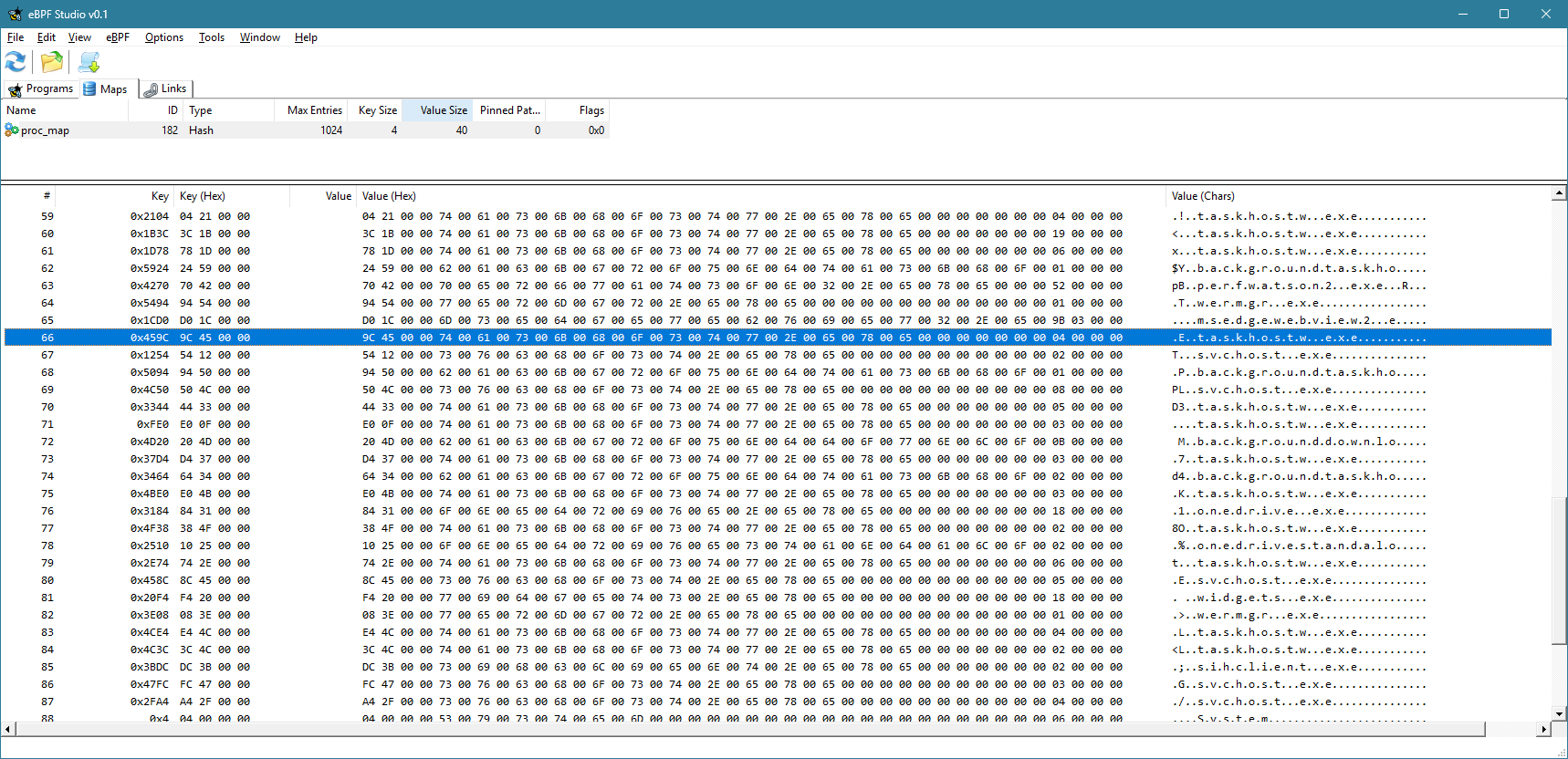
Currently, the view is not refreshed automatically. You have to click the Refresh button to refresh the maps and programs views. You can clearly see the keys (process IDs) and the values for each item in the map.

You can also use eBPF Studio to open an object file (ELF *.O files), and see their contents. Here is what you would see for TestConnections.o:

You can see the source code interspersed with eBPF “machine” instructions. Note that the -g flag mentioned earlier would allow you to see the source. Otherwise, you would only see the “assembly” instructions.

Extending the Example

Now you can add some simple functionality, like blocking a process based on its PID or executable name. I’ll leave that as an exercise to the interested reader.

The full source code is available here.

Writing a Simple Driver in Rust

The Rust language ecosystem is growing each day, its popularity increasing, and with good reason. It’s the only mainstream language that provides memory and concurrency safety at compile time, with a powerful and rich build system (cargo), and a growing number of packages (crates).

My daily driver is still C++, as most of my work is about low-level system and kernel programming, where the Windows C and COM APIs are easy to consume. Rust is a system programming language, however, which means it plays, or at least can play, in the same playground as C/C++. The main snag is the verbosity required when converting C types to Rust. This “verbosity” can be alleviated with appropriate wrappers and macros. I decided to try writing a simple WDM driver that is not useless – it’s a Rust version of the “Booster” driver I demonstrate in my book (Windows Kernel Programming), that allows changing the priority of any thread to any value.

Getting Started

To prepare for building drivers, consult Windows Drivers-rs, but basically you should have a WDK installation (either normal or the EWDK). Also, the docs require installing LLVM, to gain access to the Clang compiler. I am going to assume you have these installed if you’d like to try the following yourself.

We can start by creating a new Rust library project (as a driver is a technically a DLL loaded into kernel space):

cargo new --lib booster

We can open the booster folder in VS Code, and begin are coding. First, there are some preparations to do in order for actual code to compile and link successfully. We need a build.rs file to tell cargo to link statically to the CRT. Add a build.rs file to the root booster folder, with the following code:

fn main() -> Result<(), wdk_build::ConfigError> {
    std::env::set_var("CARGO_CFG_TARGET_FEATURE", "crt-static");
    wdk_build::configure_wdk_binary_build()
}

(Syntax highlighting is imperfect because the WordPress editor I use does not support syntax highlighting for Rust)

Next, we need to edit cargo.toml and add all kinds of dependencies. The following is the minimum I could get away with:

[package]
name = "booster"
version = "0.1.0"
edition = "2021"

[package.metadata.wdk.driver-model]
driver-type = "WDM"

[lib]
crate-type = ["cdylib"]
test = false

[build-dependencies]
wdk-build = "0.3.0"

[dependencies]
wdk = "0.3.0"       
wdk-macros = "0.3.0"
wdk-alloc = "0.3.0" 
wdk-panic = "0.3.0" 
wdk-sys = "0.3.0"   

[features]
default = []
nightly = ["wdk/nightly", "wdk-sys/nightly"]

[profile.dev]
panic = "abort"
lto = true

[profile.release]
panic = "abort"
lto = true

The important parts are the WDK crates dependencies. It’s time to get to the actual code in lib.rs.

The Code

We start by removing the standard library, as it does not exist in the kernel:

#![no_std]

Next, we’ll add a few use statements to make the code less verbose:

use core::ffi::c_void;
use core::ptr::null_mut;
use alloc::vec::Vec;
use alloc::{slice, string::String};
use wdk::*;
use wdk_alloc::WdkAllocator;
use wdk_sys::ntddk::*;
use wdk_sys::*;

The wdk_sys crate provides the low level interop kernel functions. the wdk crate provides higher-level wrappers. alloc::vec::Vec is an interesting one. Since we can’t use the standard library, you would think the types like std::vec::Vec<> are not available, and technically that’s correct. However, Vec is actually defined in a lower level module named alloc::vec, that can be used outside the standard library. This works because the only requirement for Vec is to have a way to allocate and deallocate memory. Rust exposes this aspect through a global allocator object, that anyone can provide. Since we have no standard library, there is no global allocator, so one must be provided. Then, Vec (and String) can work normally:

#[global_allocator]
static GLOBAL_ALLOCATOR: WdkAllocator = WdkAllocator;

This is the global allocator provided by the WDK crates, that use ExAllocatePool2 and ExFreePool to manage allocations, just like would do manually.

Next, we add two extern crates to get the support for the allocator and a panic handler – another thing that must be provided since the standard library is not included. Cargo.toml has a setting to abort the driver (crash the system) if any code panics:

extern crate wdk_panic;
extern crate alloc;

Now it’s time to write the actual code. We start with DriverEntry, the entry point to any Windows kernel driver:

#[export_name = "DriverEntry"]
pub unsafe extern "system" fn driver_entry(
    driver: &mut DRIVER_OBJECT,
    registry_path: PUNICODE_STRING,
) -> NTSTATUS {

Those familiar with kernel drivers will recognize the function signature (kind of). The function name is driver_entry to conform to the snake_case Rust naming convention for functions, but since the linker looks for DriverEntry, we decorate the function with the export_name attribute. You could use DriverEntry and just ignore or disable the compiler’s warning, if you prefer.

We can use the familiar println! macro, that was reimplemented by calling DbgPrint, as you would if you were using C/C++. You can still call DbgPrint, mind you, but println! is just easier:

println!("DriverEntry from Rust! {:p}", &driver);
let registry_path = unicode_to_string(registry_path);
println!("Registry Path: {}", registry_path);

Unfortunately, it seems println! does not yet support a UNICODE_STRING, so we can write a function named unicode_to_string to convert a UNICODE_STRING to a normal Rust string:

fn unicode_to_string(str: PCUNICODE_STRING) -> String {
    String::from_utf16_lossy(unsafe {
        slice::from_raw_parts((*str).Buffer, (*str).Length as usize / 2)
    })
}

Back in DriverEntry, our next order of business is to create a device object with the name “\Device\Booster”:

let mut dev = null_mut();
let mut dev_name = UNICODE_STRING::default();
string_to_ustring("\\Device\\Booster", &mut dev_name);

let status = IoCreateDevice(
    driver,
    0,
    &mut dev_name,
    FILE_DEVICE_UNKNOWN,
    0,
    0u8,
    &mut dev,
);

The string_to_ustring function converts a Rust string to a UNICODE_STRING:

fn string_to_ustring(s: &str, uc: &mut UNICODE_STRING) -> Vec<u16> {
    let mut wstring: Vec<_> = s.encode_utf16().collect();
    uc.Length = wstring.len() as u16 * 2;
    uc.MaximumLength = wstring.len() as u16 * 2;
    uc.Buffer = wstring.as_mut_ptr();
    wstring
}

This may look more complex than we would like, but think of this as a function that is written once, and then just used all over the place. In fact, maybe there is such a function already, and just didn’t look hard enough. But it will do for this driver.

If device creation fails, we return a failure status:

if !nt_success(status) {
    println!("Error creating device 0x{:X}", status);
    return status;
}

nt_success is similar to the NT_SUCCESS macro provided by the WDK headers.

Next, we’ll create a symbolic link so that a standard CreateFile call could open a handle to our device:

let mut sym_name = UNICODE_STRING::default();
let _ = string_to_ustring("\\??\\Booster", &mut sym_name);
let status = IoCreateSymbolicLink(&mut sym_name, &mut dev_name);
if !nt_success(status) {
    println!("Error creating symbolic link 0x{:X}", status);
    IoDeleteDevice(dev);
    return status;
}

All that’s left to do is initialize the device object with support for Buffered I/O (we’ll use IRP_MJ_WRITE for simplicity), set the driver unload routine, and the major functions we intend to support:

    (*dev).Flags |= DO_BUFFERED_IO;

    driver.DriverUnload = Some(boost_unload);
    driver.MajorFunction[IRP_MJ_CREATE as usize] = Some(boost_create_close);
    driver.MajorFunction[IRP_MJ_CLOSE as usize] = Some(boost_create_close);
    driver.MajorFunction[IRP_MJ_WRITE as usize] = Some(boost_write);

    STATUS_SUCCESS
}

Note the use of the Rust Option<> type to indicate the presence of a callback.

The unload routine looks like this:

unsafe extern "C" fn boost_unload(driver: *mut DRIVER_OBJECT) {
    let mut sym_name = UNICODE_STRING::default();
    string_to_ustring("\\??\\Booster", &mut sym_name);
    let _ = IoDeleteSymbolicLink(&mut sym_name);
    IoDeleteDevice((*driver).DeviceObject);
}

We just call IoDeleteSymbolicLink and IoDeleteDevice, just like a normal kernel driver would.

Handling Requests

We have three request types to handle – IRP_MJ_CREATE, IRP_MJ_CLOSE, and IRP_MJ_WRITE. Create and close are trivial – just complete the IRP successfully:

unsafe extern "C" fn boost_create_close(_device: *mut DEVICE_OBJECT, irp: *mut IRP) -> NTSTATUS {
    (*irp).IoStatus.__bindgen_anon_1.Status = STATUS_SUCCESS;
    (*irp).IoStatus.Information = 0;
    IofCompleteRequest(irp, 0);
    STATUS_SUCCESS
}

The IoStatus is an IO_STATUS_BLOCK but it’s defined with a union containing Status and Pointer. This seems to be incorrect, as Information should be in a union with Pointer (not Status). Anyway, the code accesses the Status member through the “auto generated” union, and it looks ugly. Definitely something to look into further. But it works.

The real interesting function is the IRP_MJ_WRITE handler, that does the actual thread priority change. First, we’ll declare a structure to represent the request to the driver:

#[repr(C)]
struct ThreadData {
    pub thread_id: u32,
    pub priority: i32,
}

The use of repr(C) is important, to make sure the fields are laid out in memory just as they would with C/C++. This allows non-Rust clients to talk to the driver. In fact, I’ll test the driver with a C++ client I have that used the C++ version of the driver. The driver accepts the thread ID to change and the priority to use. Now we can start with boost_write:

unsafe extern "C" fn boost_write(_device: *mut DEVICE_OBJECT, irp: *mut IRP) -> NTSTATUS {
    let data = (*irp).AssociatedIrp.SystemBuffer as *const ThreadData;

First, we grab the data pointer from the SystemBuffer in the IRP, as we asked for Buffered I/O support. This is a kernel copy of the client’s buffer. Next, we’ll do some checks for errors:

let status;
loop {
    if data == null_mut() {
        status = STATUS_INVALID_PARAMETER;
        break;
    }
    if (*data).priority < 1 || (*data).priority > 31 {
        status = STATUS_INVALID_PARAMETER;
        break;
    }

The loop statement creates an infinite block that can be exited with a break. Once we verified the priority is in range, it’s time to locate the thread object:

let mut thread = null_mut();
status = PsLookupThreadByThreadId(((*data).thread_id) as *mut c_void, &mut thread);
if !nt_success(status) {
    break;
}

PsLookupThreadByThreadId is the one to use. If it fails, it means the thread ID probably does not exist, and we break. All that’s left to do is set the priority and complete the request with whatever status we have:

        KeSetPriorityThread(thread, (*data).priority);
        ObfDereferenceObject(thread as *mut c_void);
        break;
    }
    (*irp).IoStatus.__bindgen_anon_1.Status = status;
    (*irp).IoStatus.Information = 0;
    IofCompleteRequest(irp, 0);
    status
}

That’s it!

The only remaining thing is to sign the driver. It seems that the crates support signing the driver if an INF or INX files are present, but this driver is not using an INF. So we need to sign it manually before deployment. The following can be used from the root folder of the project:

signtool sign /n wdk /fd sha256 target\debug\booster.dll

The /n wdk uses a WDK test certificate typically created automatically by Visual Studio when building drivers. I just grab the first one in the store that starts with “wdk” and use it.

The silly part is the file extension – it’s a DLL and there currently is no way to change it automatically as part of cargo build. If using an INF/INX, the file extension does change to SYS. In any case, file extensions don’t really mean that much – we can rename it manually, or just leave it as DLL.

Installing the Driver

The resulting file can be installed in the “normal” way for a software driver, such as using the sc.exe tool (from an elevated command window), on a machine with test signing on. Then sc start can be used to load the driver into the system:

sc.exe sc create booster type= kernel binPath= c:\path_to_driver_file
sc.exe start booster

Testing the Driver

I used an existing C++ application that talks to the driver and expects to pass the correct structure. It looks like this:

#include <Windows.h>
#include <stdio.h>

struct ThreadData {
	int ThreadId;
	int Priority;
};

int main(int argc, const char* argv[]) {
	if (argc < 3) {
		printf("Usage: boost <tid> <priority>\n");
		return 0;
	}

	int tid = atoi(argv[1]);
	int priority = atoi(argv[2]);

	HANDLE hDevice = CreateFile(L"\\\\.\\Booster",
		GENERIC_WRITE, 0, nullptr, OPEN_EXISTING, 0,
		nullptr);

	if (hDevice == INVALID_HANDLE_VALUE) {
		printf("Failed in CreateFile: %u\n", GetLastError());
		return 1;
	}

	ThreadData data;
	data.ThreadId = tid;
	data.Priority = priority;
	DWORD ret;
	if (WriteFile(hDevice, &data, sizeof(data),
		&ret, nullptr))
		printf("Success!!\n");
	else
		printf("Error (%u)\n", GetLastError());

	CloseHandle(hDevice);

	return 0;
}

Here is the result when changing a thread’s priority to 26 (ID 9408):

Conclusion

Writing kernel drivers in Rust is possible, and I’m sure the support for this will improve quickly. The WDK crates are at version 0.3, which means there is still a way to go. To get the most out of Rust in this space, safe wrappers should be created so that the code is less verbose, does not have unsafe blocks, and enjoys the benefits Rust can provide. Note, that I may have missed some wrappers in this simple implementation.

You can find a couple of more samples for KMDF Rust drivers here.

The code for this post can be found at https://github.com/zodiacon/Booster.

Learn more about Rust at https://trainsec.net.

Implementing Kernel Object Type (Part 2)

In Part 1 we’ve seen how to create a new kernel object type. The natural next step is to implement some functionality associated with the new object type. Before we dive into that, let’s take a broader view of what we’re trying to do. For comparison purposes, we can take an existing kernel object type, such as a Semaphore or a Section, or any other object type, look at how it’s “invoked” to get an idea of what we need to do.

A word of warning: this is a code-heavy post, and assumes the reader is fairly familiar with Win32 and native API conventions, and has basic understanding of device driver writing.

The following diagram shows the call flow when creating a semaphore from user mode starting with the CreateSemaphore(Ex) API:

A process calls the officially documented CreateSemaphore, implemented in kernel32.dll. This calls the native (undocumented) API NtCreateSemaphore, converting arguments as needed from Win32 conventions to native conventions. NtCreateSemaphore has no “real” implementation in user mode, as the kernel is the only one which can create a semaphore (or any other kernel object for that matter). NtDll has code to transition the CPU to kernel mode by using the syscall machine instruction on x64. Before issuing a syscall, the code places a number into the EAX CPU register. This number – system service index, indicates what operation is being requested.

On the kernel side of things, the System Service Dispatcher uses the value in EAX as an index into the System Service Descriptor Table (SSDT) to locate the actual function to call, pointing to the real NtCreateSemaphore implementation. Semaphores are relatively simple objects, so creation is a matter of allocating memory for a KSEMAPHORE structure (and a header), done with OnCreateObject, initializing the structure, and then inserting the object into the system (ObInsertObject).

More complex objects are created similarly, although the actual creation code in the kernel may be more elaborate. Here is a similar diagram for creating a Section object:

As can be seen in the diagram, creating a section involves a private function (MiCreateSection), but the overall process is the same.

We’ll try to mimic creating a DataStack object in a similar way. However, extending NtDll for our purposes is not an option. Even using syscall to make the transition to the kernel is problematic for the following reasons:

  • There is no entry in the SSDT for something like NtCreateDataStack, and we can’t just add an entry because PatchGuard does not like when the SSDT changes.
  • Even if we could add an entry to the SSDT safely, the entry itself is tricky. On x64, it’s not a 64-bit address. Instead, it’s a 28-bit offset from the beginning of the SSDT (the lower 4 bits store the number of parameters passed on the stack), which means the function cannot be too far from the SSDT’s address. Our driver can be loaded to any address, so the offset to anything mapped may be too large to be stored in an SSDT entry.
  • We could fix that problem perhaps by adding code in spare bytes at the end of the kernel mapped PE image, and add a JMP trampoline call to our real function…

Not easy, and we still have the PatchGuard issue. Instead, we’ll go about it in a simpler way – use DeviceIoControl (or the native NtDeviceIoControlFile) to pass the parameters to our driver. The following diagram illustrates this:

We’ll keep the “Win32 API” functions and “Native APIs” implemented in the same DLL for convenience. Let’s from the top, moving from user space to kernel space. Implementing CreateDataStack involves converting Win32 style arguments to native-style arguments before calling NtCreateDataStack. Here is the beginning:

HANDLE CreateDataStack(_In_opt_ SECURITY_ATTRIBUTES* sa, 
    _In_ ULONG maxItemSize, _In_ ULONG maxItemCount, 
    _In_ ULONG_PTR maxSize, _In_opt_ PCWSTR name) {

Notice the similarity to functions like CreateSemaphore, CreateMutex, CreateFileMapping, etc. An optional name is accepted, as DataStack objects can be named.

Native APIs work with UNICODE_STRINGs and OBJECT_ATTRIBUTES, so we need to do some work to be able to call the native API:

NTSTATUS NTAPI NtCreateDataStack(_Out_ PHANDLE DataStackHandle, 
    _In_opt_ POBJECT_ATTRIBUTES DataStackAttributes, 
    _In_ ULONG MaxItemSize, _In_ ULONG MaxItemCount, ULONG_PTR MaxSize);

We start by building an OBJECT_ATTRIBUTES:

UNICODE_STRING uname{};
if (name && *name) {
	RtlInitUnicodeString(&uname, name);
}
OBJECT_ATTRIBUTES attr;
InitializeObjectAttributes(&attr, 
	uname.Length ? &uname : nullptr, 
	OBJ_CASE_INSENSITIVE | (sa && sa->bInheritHandle ? OBJ_INHERIT : 0) | (uname.Length ? OBJ_OPENIF : 0),
	uname.Length ? GetUserDirectoryRoot() : nullptr, 
	sa ? sa->lpSecurityDescriptor : nullptr);

If a name exists, we wrap it in a UNICODE_STRING. The security attributes are used, if provided. The most interesting part is the actual name (if provided). When calling a function like the following:

CreateSemaphore(nullptr, 100, 100, L"MySemaphore");

The object name is not going to be just “MySemaphore”. Instead, it’s going to be something like “\Sessions\1\BaseNamedObjects\MySemaphore”. This is because the Windows API uses “local” session-relative names by default. Our DataStack API should provide the same semantics, which means the base directory in the Object Manager’s namespace for the current session must be used. This is the job of GetUserDirectoryRoot. Here is one way to implement it:

HANDLE GetUserDirectoryRoot() {
	static HANDLE hDir;
	if (hDir)
		return hDir;

	DWORD session = 0;
	ProcessIdToSessionId(GetCurrentProcessId(), &session);

	UNICODE_STRING name;
	WCHAR path[256];
	if (session == 0)
		RtlInitUnicodeString(&name, L"\\BaseNamedObjects");
	else {
		wsprintfW(path, L"\\Sessions\\%u\\BaseNamedObjects", session);
		RtlInitUnicodeString(&name, path);
	}
	OBJECT_ATTRIBUTES dirAttr;
	InitializeObjectAttributes(&dirAttr, &name, OBJ_CASE_INSENSITIVE, nullptr, nullptr);
	NtOpenDirectoryObject(&hDir, DIRECTORY_QUERY, &dirAttr);
	return hDir;
}

We just need to do that once, since the resulting directory handle can be stored in a global/static variable for the lifetime of the process; we won’t even bother closing the handle. The native NtOpenDirectoryObject is used to open a handle to the correct directory and return it. Notice that for session 0, there is a special rule: its directory is simply “\BaseNamedObjects”.

There is a snag in the above handling, as it’s incomplete. UWP processes have their own object directory based on their AppContainer SID, which looks like “\Sessions\1\AppContainerNamedObjects\{AppContainerSid}”, which the code above is not dealing with. I’ll leave that as an exercise for the interested coder.

Back in CreateDataStack – the session-relative directory handle is stored in the OBJECT_ATTRIBUTES RootDirectory member. Now we can call the native API:

HANDLE hDataStack;
auto status = NtCreateDataStack(&hDataStack, &attr, maxItemSize, maxItemCount, maxSize);
if (NT_SUCCESS(status))
	return hDataStack;

SetLastError(RtlNtStatusToDosError(status));
return nullptr;

If we get a failed status, we convert it to a Win32 error with RtlNtStatusToDosError and call SetLastError to make it available to the caller via the usual GetLastError. Here is the full CreateDataStack function for easier reference:

HANDLE CreateDataStack(_In_opt_ SECURITY_ATTRIBUTES* sa, 
    _In_ ULONG maxItemSize, _In_ ULONG maxItemCount, 
    _In_ ULONG_PTR maxSize, _In_opt_ PCWSTR name) {
	UNICODE_STRING uname{};
	if (name && *name) {
		RtlInitUnicodeString(&uname, name);
	}
	OBJECT_ATTRIBUTES attr;
	InitializeObjectAttributes(&attr, 
		uname.Length ? &uname : nullptr, 
		OBJ_CASE_INSENSITIVE | (sa && sa->bInheritHandle ? OBJ_INHERIT : 0) | (uname.Length ? OBJ_OPENIF : 0),
		uname.Length ? GetUserDirectoryRoot() : nullptr, 
		sa ? sa->lpSecurityDescriptor : nullptr);
	
	HANDLE hDataStack;
	auto status = NtCreateDataStack(&hDataStack, &attr, maxItemSize, maxItemCount, maxSize);
	if (NT_SUCCESS(status))
		return hDataStack;

	SetLastError(RtlNtStatusToDosError(status));
	return nullptr;
}

Next, we need to handle the native implementation. Since we just call our driver, we package the arguments in a helper structure and send it to the driver via NtDeviceIoControlFile:

NTSTATUS NTAPI NtCreateDataStack(_Out_ PHANDLE DataStackHandle,
    _In_opt_ POBJECT_ATTRIBUTES DataStackAttributes, 
    _In_ ULONG MaxItemSize, _In_ ULONG MaxItemCount, ULONG_PTR MaxSize) {
	DataStackCreate data;
	data.MaxItemCount = MaxItemCount;
	data.MaxItemSize = MaxItemSize;
	data.ObjectAttributes = DataStackAttributes;
	data.MaxSize = MaxSize;

	IO_STATUS_BLOCK ioStatus;
	return NtDeviceIoControlFile(g_hDevice, nullptr, nullptr,
        nullptr, &ioStatus, IOCTL_DATASTACK_CREATE, 
        &data, sizeof(data), DataStackHandle, sizeof(HANDLE));
}

Where is g_Device coming from? When our DataStack.Dll is loaded into a process, we can open a handle to the device exposed by the driver (which we have yet to implement). In fact, if we can’t obtain a handle, the DLL should fail to load:

HANDLE g_hDevice = INVALID_HANDLE_VALUE;

bool OpenDevice() {
	UNICODE_STRING devName;
	RtlInitUnicodeString(&devName, L"\\Device\\KDataStack");
	OBJECT_ATTRIBUTES devAttr;
	InitializeObjectAttributes(&devAttr, &devName, 0, nullptr, nullptr);
	IO_STATUS_BLOCK ioStatus;
	return NT_SUCCESS(NtOpenFile(&g_hDevice, GENERIC_READ | GENERIC_WRITE, &devAttr, &ioStatus, 0, 0));
}

void CloseDevice() {
	if (g_hDevice != INVALID_HANDLE_VALUE) {
		CloseHandle(g_hDevice);
		g_hDevice = INVALID_HANDLE_VALUE;
	}
}

BOOL APIENTRY DllMain(HMODULE hModule, DWORD reason, LPVOID) {
	switch (reason) {
		case DLL_PROCESS_ATTACH:
			DisableThreadLibraryCalls(hModule);
			return OpenDevice();

		case DLL_THREAD_ATTACH:
		case DLL_THREAD_DETACH:
		case DLL_PROCESS_DETACH:
			CloseDevice();
			break;
	}
	return TRUE;
}

OpenDevice uses the native NtOpenFile to open a handle, as the driver does not provide a symbolic link to make it slightly harder to reach it directly from user mode. If OpenDevice returns false, the DLL will unload.

Kernel Space

Now we move to the kernel side of things. Our driver must create a device object and expose IOCTLs for calls made from user mode. The additions to DriverEntry are pretty standard:

extern "C" NTSTATUS
DriverEntry(PDRIVER_OBJECT DriverObject, PUNICODE_STRING RegistryPath) {
	UNREFERENCED_PARAMETER(RegistryPath);

	auto status = DsCreateDataStackObjectType();
	if (!NT_SUCCESS(status)) {
		return status;
	}

	UNICODE_STRING devName = RTL_CONSTANT_STRING(L"\\Device\\KDataStack");
	PDEVICE_OBJECT devObj;
	status = IoCreateDevice(DriverObject, 0, &devName, FILE_DEVICE_UNKNOWN, 0, FALSE, &devObj);
	if (!NT_SUCCESS(status))
		return status;

	DriverObject->DriverUnload = OnUnload;
	DriverObject->MajorFunction[IRP_MJ_CREATE] = 
    DriverObject->MajorFunction[IRP_MJ_CLOSE] =
		[](PDEVICE_OBJECT, PIRP Irp) -> NTSTATUS {
		Irp->IoStatus.Status = STATUS_SUCCESS;
		IoCompleteRequest(Irp, IO_NO_INCREMENT);
		return STATUS_SUCCESS;
		};

	DriverObject->MajorFunction[IRP_MJ_DEVICE_CONTROL] = OnDeviceControl;

	return STATUS_SUCCESS;
}

The driver creates a single device object with the name “\Device\DataStack” that was used in DllMain to open a handle to that device. IRP_MJ_CREATE and IRP_MJ_CLOSE are supported to make the driver usable. Finally, IRP_MJ_DEVICE_CONTROL handling is set up (OnDeviceControl).

The job of OnDeviceControl is to propagate the data provided by helper structures to the real implementation of the native APIs. Here is the code that covers IOCTL_DATASTACK_CREATE:

NTSTATUS OnDeviceControl(PDEVICE_OBJECT, PIRP Irp) {
	auto stack = IoGetCurrentIrpStackLocation(Irp);
	auto& dic = stack->Parameters.DeviceIoControl;
	auto len = 0U;
	auto status = STATUS_INVALID_DEVICE_REQUEST;

	switch (dic.IoControlCode) {
		case IOCTL_DATASTACK_CREATE:
		{
			auto data = (DataStackCreate*)Irp->AssociatedIrp.SystemBuffer;
			if (dic.InputBufferLength < sizeof(*data)) {
				status = STATUS_BUFFER_TOO_SMALL;
				break;
			}
			HANDLE hDataStack;
			status = NtCreateDataStack(&hDataStack, 
                data->ObjectAttributes, 
                data->MaxItemSize, 
                data->MaxItemCount, 
                data->MaxSize);
			if (NT_SUCCESS(status)) {
				len = IoIs32bitProcess(Irp) ? sizeof(ULONG) : sizeof(HANDLE);
				memcpy(data, &hDataStack, len);
			}
			break;
		}
	}

	Irp->IoStatus.Status = status;
	Irp->IoStatus.Information = len;
	IoCompleteRequest(Irp, IO_NO_INCREMENT);
	return status;
}

NtCreateDataStack is called with the unpacked arguments. The only trick here is the use of IoIs32bitProcess to check if the calling process is 32-bit. If so, 4 bytes should be copied back as the handle instead of 8 bytes.

The real work of creating a DataStack object (finally), falls on NtCreateDataStack. First, we need to have a structure that manages DataStack objects. Here it is:

struct DataStack {
	LIST_ENTRY Head;
	FAST_MUTEX Lock;
	ULONG Count;
	ULONG MaxItemCount;
	ULONG_PTR Size;
	ULONG MaxItemSize;
	ULONG_PTR MaxSize;
};

The details are not important now, since we’re dealing with object creation only. But we should initialize the structure properly when the object is created. The first major step is telling the kernel to create a new object of DataStack type:

NTSTATUS NTAPI NtCreateDataStack(_Out_ PHANDLE DataStackHandle,
    _In_opt_ POBJECT_ATTRIBUTES DataStackAttributes, 
    _In_ ULONG MaxItemSize, _In_ ULONG MaxItemCount, ULONG_PTR MaxSize) {
	auto mode = ExGetPreviousMode();
	extern POBJECT_TYPE g_DataStackType;
	//
	// sanity check
	//
	if (g_DataStackType == nullptr)
		return STATUS_NOT_FOUND;

	DataStack* ds;
	auto status = ObCreateObject(mode, g_DataStackType, DataStackAttributes, mode, 
		nullptr, sizeof(DataStack), 0, 0, (PVOID*)&ds);
	if (!NT_SUCCESS(status)) {
		KdPrint(("Error in ObCreateObject (0x%X)\n", status));
		return status;
	}

ObCreateObject looks like this:

NTSTATUS NTAPI ObCreateObject(
	_In_ KPROCESSOR_MODE ProbeMode,
	_In_ POBJECT_TYPE ObjectType,
	_In_opt_ POBJECT_ATTRIBUTES ObjectAttributes,
	_In_ KPROCESSOR_MODE OwnershipMode,
	_Inout_opt_ PVOID ParseContext,
	_In_ ULONG ObjectBodySize,
	_In_ ULONG PagedPoolCharge,
	_In_ ULONG NonPagedPoolCharge,
	_Deref_out_ PVOID* Object);

ExGetPreviousMode returns the caller’s mode (UserMode or KernelMode enum values), and based off of that we ask ObCreateObject to make the relevant probing and security checks. ObjectType is our DataStack type object, ObjectBodySize is sizeof(DataStack), our data structure. The last parameter is where the object pointer is returned.

If this succeeds, we need to initialize the structure appropriately, and then add the object to the system “officially”, where the object header would be built as well:

DsInitializeDataStack(ds, MaxItemSize, MaxItemCount, MaxSize);
HANDLE hDataStack;
status = ObInsertObject(ds, nullptr, DATA_STACK_ALL_ACCESS, 0, nullptr, &hDataStack);
if (NT_SUCCESS(status)) {
	*DataStackHandle = hDataStack;
}
else {
	KdPrint(("Error in ObInsertObject (0x%X)\n", status));
}
return status;

DsInitializeDataStack is a helper function to initialize an empty DataStack:

void DsInitializeDataStack(DataStack* DataStack, ULONG MaxItemSize, ULONG MaxItemCount, ULONG_PTR MaxSize) {
	InitializeListHead(&DataStack->Head);
	ExInitializeFastMutex(&DataStack->Lock);
	DataStack->Count = 0;
	DataStack->MaxItemCount = MaxItemCount;
	DataStack->Size = 0;
	DataStack->MaxItemSize = MaxItemSize;
	DataStack->MaxSize = MaxSize;
}

This is it for CreateDataStack and its chain of called functions. Handling OpenDataStack is similar, and simpler, as the heavy lifting is done by the kernel.

Opening an Existing DataStack Object

OpenDataStack attempts to open a handle to an existing DataStack object by name:

HANDLE OpenDataStack(_In_ ACCESS_MASK desiredAccess, _In_ BOOL inheritHandle, _In_ PCWSTR name) {
	if (name == nullptr || *name == 0) {
		SetLastError(ERROR_INVALID_NAME);
		return nullptr;
	}

	UNICODE_STRING uname;
	RtlInitUnicodeString(&uname, name);
	OBJECT_ATTRIBUTES attr;
	InitializeObjectAttributes(&attr,
		&uname,
		OBJ_CASE_INSENSITIVE | (inheritHandle ? OBJ_INHERIT : 0),
		GetUserDirectoryRoot(),
		nullptr);
	HANDLE hDataStack;
	auto status = NtOpenDataStack(&hDataStack, desiredAccess, &attr);
	if (NT_SUCCESS(status))
		return hDataStack;

	SetLastError(RtlNtStatusToDosError(status));
	return nullptr;
}

Again, from a high-level perspective it looks similar to APIs like OpenSemaphore or OpenEvent. NtOpenDataStack will make a call to the driver via NtDeviceIoControlFile, packing the arguments:

NTSTATUS NTAPI NtOpenDataStack(_Out_ PHANDLE DataStackHandle, 
    _In_ ACCESS_MASK DesiredAccess, 
    _In_ POBJECT_ATTRIBUTES DataStackAttributes) {
	DataStackOpen data;
	data.DesiredAccess = DesiredAccess;
	data.ObjectAttributes = DataStackAttributes;

	IO_STATUS_BLOCK ioStatus;
	return NtDeviceIoControlFile(g_hDevice, nullptr, nullptr, nullptr, &ioStatus,
		IOCTL_DATASTACK_OPEN, &data, sizeof(data), DataStackHandle, sizeof(HANDLE));
}

Finally, the implementation of NtOpenDataStack in the kernel is surprisingly simple:

NTSTATUS NTAPI NtOpenDataStack(_Out_ PHANDLE DataStackHandle, 
    _In_ ACCESS_MASK DesiredAccess, 
    _In_ POBJECT_ATTRIBUTES DataStackAttributes) {
	return ObOpenObjectByName(DataStackAttributes, g_DataStackType, ExGetPreviousMode(),
		nullptr, DesiredAccess, nullptr, DataStackHandle);
}

The simplicity is thanks to the generic ObOpenObjectByName kernel API, which is not documented, but is exported, that attempts to open a handle to any named object:

NTSTATUS ObOpenObjectByName(
	_In_ POBJECT_ATTRIBUTES ObjectAttributes,
	_In_ POBJECT_TYPE ObjectType,
	_In_ KPROCESSOR_MODE AccessMode,
	_Inout_opt_ PACCESS_STATE AccessState,
	_In_opt_ ACCESS_MASK DesiredAccess,
	_Inout_opt_ PVOID ParseContext,
	_Out_ PHANDLE Handle);

That’s it for creating and opening a DataStack object. Let’s test it!

Testing

After deploying the driver to a test machine, we can write simple code to create a DataStack object (named or unnamed), and see if it works. Then, we’ll close the handle:

#include <Windows.h>
#include <stdio.h>
#include "..\DataStack\DataStackAPI.h"

int main() {
	HANDLE hDataStack = CreateDataStack(nullptr, 0, 100, 10 << 20, L"MyDataStack");
	if (!hDataStack) {
		printf("Failed to create data stack (%u)\n", GetLastError());
		return 1;
	}

	printf("Handle created: 0x%p\n", hDataStack);

	auto hOpen = OpenDataStack(GENERIC_READ, FALSE, L"MyDataStack");
	if (!hOpen) {
		printf("Failed to open data stack (%u)\n", GetLastError());
		return 1;
	}

	CloseHandle(hDataStack);
	CloseHandle(hOpen);
	return 0;
}

Here is what Process Explorer shows when the handle is open, but not yet closed:

Let’s check the kernel debugger:

kd> !object \Sessions\2\BaseNamedObjects\MyDataStack
Object: ffffc785bb6e8430  Type: (ffffc785ba4fd830) DataStack
    ObjectHeader: ffffc785bb6e8400 (new version)
    HandleCount: 1  PointerCount: 32769
    Directory Object: ffff92013982fe70  Name: MyDataStack
lkd> dt nt!_OBJECT_TYPE ffffc785ba4fd830
   +0x000 TypeList         : _LIST_ENTRY [ 0xffffc785`bb6e83e0 - 0xffffc785`bb6e83e0 ]
   +0x010 Name             : _UNICODE_STRING "DataStack"
   +0x020 DefaultObject    : (null) 
   +0x028 Index            : 0x4c 'L'
   +0x02c TotalNumberOfObjects : 1
   +0x030 TotalNumberOfHandles : 1
   +0x034 HighWaterNumberOfObjects : 1
   +0x038 HighWaterNumberOfHandles : 2
...

After opening the second handle (by name), the debugger reports two handles (different run):

lkd> !object ffffc585f68e25f0
Object: ffffc585f68e25f0  Type: (ffffc585ee55df10) DataStack
    ObjectHeader: ffffc585f68e25c0 (new version)
    HandleCount: 2  PointerCount: 3
    Directory Object: ffffaf8deb3c60a0  Name: MyDataStack

The source code can be found here.

In future parts, we’ll implement the actual DataStack functionality.

Creating Kernel Object Type (Part 1)

Windows provides much of its functionality via kernel objects. Common examples are processes, threads, mutexes, semaphores, sections, and many more. We can see the object types supported on a particular Windows system by using a tool such as Object Explorer, or in a more limited way – WinObj. Here is a view from Object Explorer:

Every object type has a name (e.g. “Process”), an index, the pool to use for allocating memory for these kind of objects (typically Non Paged pool or Paged pool), and a few more properties. The “dynamic” part in the above screenshot shows that an object type keeps track of the number of objects and handles currently used for that type. Object types are themselves objects, as is perhaps evident from the fact that there is an object type called “Type” (index 2, the first one), and its number of “objects” is the number of object types supported on this version of Windows.

User mode clients use kernel objects by invoking APIs. For example, CreateProcess creates a process object and a thread object, returning handles to both. OpenProcess, on the other hand, tries to obtain a handle to an existing process object, given its process ID and the access mask requested. Similar APIs exist for other object types. All this should be fairly familiar to reader of this blog.

A New Kernel Object Type

Can we create a new kernel object type, that provides some useful functionality to user-mode (and kernel-mode) clients? Perhaps we should first ask, why would we want to do that? As an alternative, we can create a kernel driver that exposes the desired functionality through I/O control codes, invoked with DeviceIoControl by clients. We can certainly create nice wrappers that provide nicer-looking functions so that clients do not need to see the DeviceIoControl calls.

I can see at two reasons to go the “new object type” approach:

  • It’s a great learning opportunity, and could be fun 🙂
  • We get lots of things for free, such as handle and objects management (handle count, ref count), sharing capabilities, just like any other kernel object, and some common APIs clients are already familiar with, like CloseHandle.

OK, let’s assume we want to go down this route. How do we create an object type, or a “generic” kernel object, for that matter. As it turns out, the kernel functions needed are exported, but they are not documented. We’ll use them anyway 😉

We’ll create an Empty WDM Driver in Visual Studio, delete the INF file so we are left with an empty project with the correct settings for the compiler and linker. For more information on creating driver projects, consult the official documentation, or my book, “Windows Kernel Programming, 2nd edition“.

We’ll add a C++ file to the project, and write our DriverEntry routine. At first, its only job is to create a new type object:

extern "C" NTSTATUS
DriverEntry(PDRIVER_OBJECT DriverObject, PUNICODE_STRING) {
    DriverObject->DriverUnload = OnUnload;
    return DsCreateDataStackObjectType();
}

The kernel object type we’ll implement is called “DataStack”, and it’s supposed to provide a stack-like functionality. You may be wondering what’s so special about that? Every language/library under the sun has some stack data structure. Implemented as kernel objects, these data stacks offer some benefits that are normally unavailable:

  • Thread Synchronization, so the data stack can be accessed freely by clients. Data race prevention is the burden of the implementation.
  • These data stacks can be shared between processes, something not offered by any stack implementation you find in languages/libraries.

You could argue that it would be possible to implement such data stacks on top of Section (File Mapping) objects, which allow sharing of memory, with some API that does all the heavy lifting. This is true in essence, but not ideal. The section could be misused by accessing it directly without regard to the data stack implemented. And besides, it’s not the point. You could come up with another kind of object that would not lend itself to easy implementation in other ways.

Back to DriverEntry: The only call is to a helper function, whose purpose is to create the object type. Creating an object type is done with ObCreateObjectType, declared like so:

NTSTATUS NTAPI ObCreateObjectType(
	_In_ PUNICODE_STRING TypeName,
	_In_ POBJECT_TYPE_INITIALIZER ObjectTypeInitializer,
	_In_opt_ PSECURITY_DESCRIPTOR sd,
	_Deref_out_ POBJECT_TYPE* ObjectType);

TypeName is the type name for the new type, which must be unique. ObjectTypeInitializer provides various properties for the type object, some of which we’ll examine momentarily. sd is an optional security descriptor to assign to the new type object, where NULL means the kernel will provide an appropriate default. ObjectType is the returned object type pointer, if successful. The POBJECT_TYPE is not defined in all its glory in the WDK headers, so it’s treated as a PVOID, but that’s fine. We won’t need to look inside.

The simplest way to create the type object would be like so:

UNICODE_STRING typeName = RTL_CONSTANT_STRING(L"DataStack");
OBJECT_TYPE_INITIALIZER init{ sizeof(init) };
auto status = ObCreateObjectType(&typeName, &init, nullptr,
    &g_DataStackType);

The OBJECT_TYPE_INITIALIZER has a Length first member, which must be initialized to the size of the structure, as is common in many Windows APIs. The rest of the structure is zeroed out, which is good enough for our first attempt. The returned pointer lands in a global variable (g_DataStackType), that we can use if needed.

The Unload routine may try to remove the new object type like so:

void OnUnload(PDRIVER_OBJECT DriverObject) {
    UNREFERENCED_PARAMETER(DriverObject);
    ObDereferenceObject(g_DataStackType);
}

Let’s see the effect this could has when the driver is deployed and loaded. First, Here is Object Explorer on a Windows 11 VM where the driver is deployed:

Notice the new object type, with an index of 76 and the name “DataStack”. There are zero objects and zero handles for this kind of object right now (no big surprise there). Let’s see what the kernel debugger has to say:

lkd> !object \objecttypes\datastack
Object: ffff8385bd5ff570 Type: (ffff8385b26a8d00) Type
ObjectHeader: ffff8385bd5ff540 (new version)
HandleCount: 0 PointerCount: 2
Directory Object: ffffc9067828b730 Name: DataStack

Clearly there is such a object type, and it has 2 references, one of which we are holding in our kernel variable. We can examine the object in its more specific role as a object type:

lkd> dt nt!_OBJECT_TYPE ffff8385bd5ff570
   +0x000 TypeList         : _LIST_ENTRY [ 0xffff8385`bd5ff570 - 0xffff8385`bd5ff570 ]
   +0x010 Name             : _UNICODE_STRING "DataStack"
   +0x020 DefaultObject    : (null) 
   +0x028 Index            : 0x4c 'L'
   +0x02c TotalNumberOfObjects : 0
   +0x030 TotalNumberOfHandles : 0
   +0x034 HighWaterNumberOfObjects : 0
   +0x038 HighWaterNumberOfHandles : 0
   +0x040 TypeInfo         : _OBJECT_TYPE_INITIALIZER
   +0x0b8 TypeLock         : _EX_PUSH_LOCK
   +0x0c0 Key              : 0x61746144
   +0x0c8 CallbackList     : _LIST_ENTRY [ 0xffff8385`bd5ff638 - 0xffff8385`bd5ff638 ]
   +0x0d8 SeMandatoryLabelMask : 0
   +0x0dc SeTrustConstraintMask : 0

Note the Name and the fact that there are zero objects and handles.

Let’s see what happens when we unload the driver. Since we’re dereferencing our reference (g_DataStackType), the object type is still alive, as the kernel holds to another reference (this was generated in a different run of the system, so the addresses are not the same):

lkd> !object \objecttypes\datastack
Object: ffffc081d94fd330 Type: (ffffc081cd6af5e0) Type
ObjectHeader: ffffc081d94fd300 (new version)
HandleCount: 0 PointerCount: 1
Directory Object: ffff968b2c233a10 Name: DataStack

Why do we have another reference? The type object is permanent, as we can see if we examine its object header:

lkd> dt nt!_OBJECT_HEADER ffffc081d94fd300
+0x000 PointerCount : 0n1
+0x008 HandleCount : 0n0
+0x008 NextToFree : (null)
+0x010 Lock : _EX_PUSH_LOCK
+0x018 TypeIndex : 0xc5 ''
+0x019 TraceFlags : 0 ''
+0x019 DbgRefTrace : 0y0
+0x019 DbgTracePermanent : 0y0
+0x01a InfoMask : 0x3 ''
+0x01b Flags : 0x13 ''
+0x01b NewObject : 0y1
+0x01b KernelObject : 0y1
+0x01b KernelOnlyAccess : 0y0
+0x01b ExclusiveObject : 0y0
+0x01b PermanentObject : 0y1
…

We could remove the “permanent” flag from the type object by making it “temporary” (a.k.a. normal) in our Unload routine, like so:

HANDLE hType;
auto status = ObOpenObjectByPointer(g_DataStackType,
    OBJ_KERNEL_HANDLE, nullptr, 0, nullptr, KernelMode, &hType);
if (NT_SUCCESS(status)) {
    status = ZwMakeTemporaryObject(hType);
    ZwClose(hType);
}
ObDereferenceObject(g_DataStackType);

Calling ZwMakeTemporaryObject (a documented API) removes the permanent bit, so that ObDereferenceObject removes the last reference of the DataStack object type. Unfortunately, this works too well – it also causes the system to crash (BSOD), and that’s because the kernel does not expect type objects to be deleted. It makes sense, since objects of that type may still be alive. Even if the kernel could determine that no objects of that type are alive right now, and allow the deletion, what would that mean for future creations? Worse, it’s possible to create objects privately without a header (very common in the kernel), which means the kernel is unaware of these objects to begin with. The bottom line is, type objects cannot be destroyed safely. In our case, it means the driver should remain alive at all times, but regardless, it should not attempt to destroy the type object.

Object Type Customization

The code to create the DataStack object type did not do any customizations. Possible customizations are available via the OBJECT_TYPE_INITIALIZER structure:

typedef struct _OBJECT_TYPE_INITIALIZER {
	USHORT Length;
	union {
		USHORT Flags;
		struct {
			UCHAR CaseInsensitive : 1;
			UCHAR UnnamedObjectsOnly : 1;
			UCHAR UseDefaultObject : 1;
			UCHAR SecurityRequired : 1;
			UCHAR MaintainHandleCount : 1;
			UCHAR MaintainTypeList : 1;
			UCHAR SupportsObjectCallbacks : 1;
			UCHAR CacheAligned : 1;
			UCHAR UseExtendedParameters : 1;
			UCHAR _Reserved : 7;
		};
	};

	ULONG ObjectTypeCode;
	ULONG InvalidAttributes;
	GENERIC_MAPPING GenericMapping;
	ULONG ValidAccessMask;
	ULONG RetainAccess;
	POOL_TYPE PoolType;
	ULONG DefaultPagedPoolCharge;
	ULONG DefaultNonPagedPoolCharge;
	OB_DUMP_METHOD DumpProcedure;
	OB_OPEN_METHOD OpenProcedure;
	OB_CLOSE_METHOD CloseProcedure;
	OB_DELETE_METHOD DeleteProcedure;
	OB_PARSE_METHOD ParseProcedure;
	OB_SECURITY_METHOD SecurityProcedure;
	OB_QUERYNAME_METHOD QueryNameProcedure;
	OB_OKAYTOCLOSE_METHOD OkayToCloseProcedure;
	ULONG WaitObjectFlagMask;
	USHORT WaitObjectFlagOffset;
	USHORT WaitObjectPointerOffset;
} OBJECT_TYPE_INITIALIZER, * POBJECT_TYPE_INITIALIZER;

This is quite a structure. The various *Procedure members are callbacks. You can find their prototypes in the ReactOS source code, but for now you can just replace all of them with an opaque PVOID to make it easier to deal with the structure. At this point, we’ll customize our object type’s creation like so:

UNICODE_STRING typeName = RTL_CONSTANT_STRING(L"DataStack");
OBJECT_TYPE_INITIALIZER init{ sizeof(init) };
init.PoolType = NonPagedPoolNx;
init.DefaultNonPagedPoolCharge = sizeof(DataStack);
init.ValidAccessMask = DATA_STACK_ALL_ACCESS;
GENERIC_MAPPING mapping{
    STANDARD_RIGHTS_READ | DATA_STACK_QUERY,
    STANDARD_RIGHTS_WRITE | DATA_STACK_PUSH | DATA_STACK_POP | 
        DATA_STACK_CLEAR,
    STANDARD_RIGHTS_EXECUTE | SYNCHRONIZE, DATA_STACK_ALL_ACCESS
};
init.GenericMapping = mapping;

auto status = ObCreateObjectType(&typeName, &init, nullptr,
    &g_DataStackType);

The PoolType member indicates from which pool objects of this type should be allocated. I’ve selected the Non Paged pool with no execute allowed. DataStack is the structure we’ll use for the implementation of the type. We’ll see what that looks like in the next post. For now, we indicate to the kernel that the base memory consumption of objects of DataStack type is the size of that structure.

Next, we see some constants being used that I have defined in a file that is going to be shared between the driver and user mode clients that has some definitions, similar to other object kinds:

#define DATA_STACK_QUERY	0x1
#define DATA_STACK_PUSH		0x2
#define DATA_STACK_POP		0x4
#define DATA_STACK_CLEAR	0x8

#define DATA_STACK_ALL_ACCESS (STANDARD_RIGHTS_REQUIRED | SYNCHRONIZE | DATA_STACK_QUERY | DATA_STACK_PUSH | DATA_STACK_POP | DATA_STACK_CLEAR)

These #defines provide specific access mask bits for objects of the DataStack type. We’ll use these in the implementation so that only powerful-enough handles would allow the relevant access. In the object type creation we use these in the ValidAccessMask member to indicate what is valid to request by clients, and also to provide generic mapping. Generic mapping is a standard feature used by Windows to map generic rights (GENERIC_READ, GENERIC_WRITE, GENERIC_EXECUTE, and GENERIC_ALL) to specific rights appropriate for the object type. You can see these mappings in Object Explorer for all object types. For example, if a client asks for GENERIC_READ when opening a DataStack object, the access requested is going to be DATA_STACK_QUERY.

What’s Next?

We have an object type, that’s great! But we can’t create objects of this type, nor use it in any way. We’re missing the actual implementation. From a user-mode perspective, we’d like to expose an API, not much different in spirit than other object types:

NTSTATUS NTAPI NtCreateDataStack(
	_Out_ PHANDLE DataStackHandle, 
	_In_opt_ POBJECT_ATTRIBUTES DataStackAttributes, 
	_In_ ULONG MaxItemSize, 
	_In_ ULONG MaxItemCount, 
	ULONG_PTR MaxSize);
NTSTATUS NTAPI NtOpenDataStack(
	_Out_ PHANDLE DataStackHandle, 
	_In_ ACCESS_MASK DesiredAccess, 
	_In_opt_ POBJECT_ATTRIBUTES DataStackAttributes);
NTSTATUS NTAPI NtQueryDataStack(
	_In_ HANDLE DataStackHandle, 
	_In_ DataStackInformationClass InformationClass, 
	_Out_ PVOID Buffer, 
	_In_ ULONG BufferSize, 
	_Out_opt_ PULONG ReturnLength);
NTSTATUS NTAPI NtPushDataStack(
	_In_ HANDLE DataStackHandle, 
	_In_ PVOID Item, 
	_In_ ULONG ItemSize);
NTSTATUS NTAPI NtPopDataStack(
	_In_ HANDLE DataStackHandle, 
	_Out_ PVOID Buffer, 
	_Inout_ PULONG BufferSize);
NTSTATUS NTAPI NtClearDataStack(_In_ HANDLE DataStackHandle);

if you’re familiar with the Windows Native API, the “spirit” of these DataStack API is the same. The big questions are, how do we implement these APIs – in user mode and kernel mode? We’ll look into it in the next post.

I have not provided a prebuilt project for this part. Feel free to type things yourself, as there is not too much code at this point. In the next post, I’ll provide a Github repo that has all the code. See you then!

Kernel Object Names Lifetime

Much of the Windows kernel functionality is exposed via kernel objects. Processes, threads, events, desktops, semaphores, and many other object types exist. Some object types can have string-based names, which means they can be “looked up” by that name. In this post, I’d like to consider some subtleties that concern object names.

Let’s start by examining kernel object handles in Process Explorer. When we select a process of interest, we can see the list of handles in one of the bottom views:

Handles view in Process Explorer

However, Process Explorer shows what it considers handles to named objects only by default. But even that is not quite right. You will find certain object types in this view that don’t have string-based names. The simplest example is processes. Processes have numeric IDs, rather than string-based names. Still, Process Explorer shows processes with a “name” that shows the process executable name and its unique process ID. This is useful information, for sure, but it’s not the object’s name.

Same goes for threads: these are displayed, even though threads (like processes) have numeric IDs rather than string-based names.

If you wish to see all handles in a process, you need to check the menu item Show Unnamed Handles and Mappings in the View menu.

Object Name Lifetime

What is the lifetime associated with an object’s name? This sounds like a weird question. Kernel objects are reference counted, so obviously when an object reference count drops to zero, it is destroyed, and its name is deleted as well. This is correct in part. Let’s look a bit deeper.

The following example code creates a Notepad process, and puts it into a named Job object (error handling omitted for brevity):

PROCESS_INFORMATION pi;
STARTUPINFO si = { sizeof(si) };

WCHAR name[] = L"notepad";
::CreateProcess(nullptr, name, nullptr, nullptr, FALSE, 0, 
	nullptr, nullptr, &si, &pi);

HANDLE hJob = ::CreateJobObject(nullptr, L"MyTestJob");
::AssignProcessToJobObject(hJob, pi.hProcess);

After running the above code, we can open Process Explorer, locate the new Notepad process, double-click it to get to its properties, and then navigate to the Job tab:

We can clearly see the job object’s name, prefixed with “\Sessions\1\BaseNamedObjects” because simple object names (like “MyTestJob”) are prepended with a session-relative directory name, making the name unique to this session only, which means processes in other sessions can create objects with the same name (“MyTestJob”) without any collision. Further details on names and sessions is outside the scope of this post.

Let’s see what the kernel debugger has to say regarding this job object:

lkd> !process 0 1 notepad.exe
PROCESS ffffad8cfe3f4080
    SessionId: 1  Cid: 6da0    Peb: 175b3b7000  ParentCid: 16994
    DirBase: 14aa86d000  ObjectTable: ffffc2851aa24540  HandleCount: 233.
    Image: notepad.exe
    VadRoot ffffad8d65d53d40 Vads 90 Clone 0 Private 524. Modified 0. Locked 0.
    DeviceMap ffffc28401714cc0
    Token                             ffffc285355e9060
    ElapsedTime                       00:04:55.078
    UserTime                          00:00:00.000
    KernelTime                        00:00:00.000
    QuotaPoolUsage[PagedPool]         214720
    QuotaPoolUsage[NonPagedPool]      12760
    Working Set Sizes (now,min,max)  (4052, 50, 345) (16208KB, 200KB, 1380KB)
    PeakWorkingSetSize                3972
    VirtualSize                       2101395 Mb
    PeakVirtualSize                   2101436 Mb
    PageFaultCount                    4126
    MemoryPriority                    BACKGROUND
    BasePriority                      8
    CommitCharge                      646
    Job                               ffffad8d14503080

lkd> !object ffffad8d14503080
Object: ffffad8d14503080  Type: (ffffad8cad8b7900) Job
    ObjectHeader: ffffad8d14503050 (new version)
    HandleCount: 1  PointerCount: 32768
    Directory Object: ffffc283fb072730  Name: MyTestJob

Clearly, there is a single handle to the job object. The PointerCount value is not the real reference count because of the kernel’s tracking of the number of usages each handle has (outside the scope of this post as well). To get the real reference count, we can click the PointerCount DML link in WinDbg (the !truref command):

kd> !trueref ffffad8d14503080
ffffad8d14503080: HandleCount: 1 PointerCount: 32768 RealPointerCount: 3

We have a reference count of 3, and since we have one handle, it means there are two references somewhere to this job object.

Now let’s see what happens when we close the job handle we’re holding:

::CloseHandle(hJob);

Reopening the Notepad’s process properties in Process Explorer shows this:

Running the !object command again on the job yields the following:

lkd> !object ffffad8d14503080
Object: ffffad8d14503080  Type: (ffffad8cad8b7900) Job
    ObjectHeader: ffffad8d14503050 (new version)
    HandleCount: 0  PointerCount: 1
    Directory Object: 00000000  Name: MyTestJob

The handle count dropped to zero because we closed our (only) existing handle to the job. The job object’s name seem to be intact at first glance, but not really: The directory object is NULL, which means the object’s name is no longer visible in the object manager’s namespace.

Is the job object alive? Clearly, yes, as the pointer (reference) count is 1. When the handle count it zero, the Pointer Count is the correct reference count, and there is no need to run the !truref command. At this point, you should be able to guess why the object is still alive, and where is that one reference coming from.

If you guessed “the Notepad process”, then you are right. When a process is added to a job, it adds a reference to the job object so that it remains alive if at least one process is part of the job.

We, however, have lost the only handle we have to the job object. Can we get it back knowing the object’s name?

hJob = ::OpenJobObject(JOB_OBJECT_QUERY, FALSE, L"MyTestJob");

This call fails, and GetLastError returns 2 (“the system cannot find the file specified”, which in this case is the job object’s name). This means that the object name is destroyed when the last handle of the object is closed, even if there are outstanding references on the object (the object is alive!).

This the job object example is just that. The same rules apply to any named object.

Is there a way to “preserve” the object name even if all handles are closed? Yes, it’s possible if the object is created as “Permanent”. Unfortunately, this capability is not exposed by the Windows API functions like CreateJobObject, CreateEvent, and all other create functions that accept an object name.

Quick update: The native NtMakePermanentObject can make an object permanent given a handle, if the caller has the SeCreatePermanent privilege. This privilege is not granted to any user/group by default.

A permanent object can be created with kernel APIs, where the flag OBJ_PERMANENT is specified as one of the attribute flags part of the OBJECT_ATTRIBUTES structure that is passed to every object creation API in the kernel.

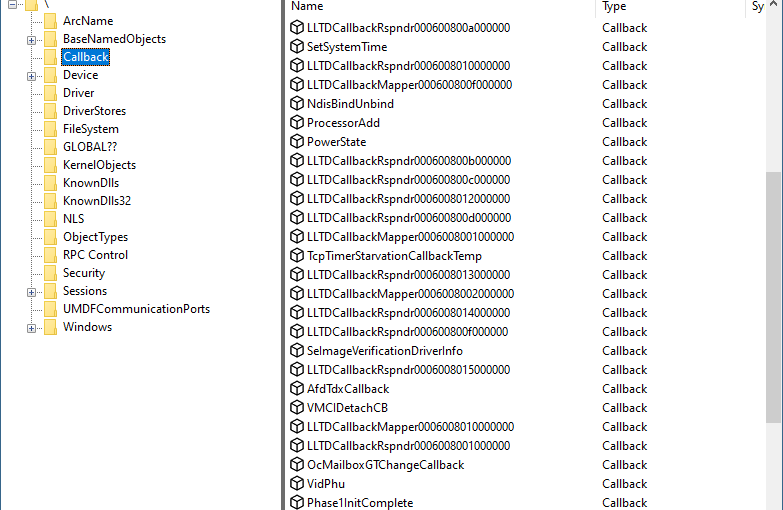
A “canonical” kernel example is the creation of a callback object. Callback objects are only usable in kernel mode. They provide a way for a driver/kernel to expose notifications in a uniform way, and allow interested parties (drivers/kernel) to register for notifications based on that callback object. Callback objects are created with a name so that they can be looked up easily by interested parties. In fact, there are quite a few callback objects on a typical Windows system, mostly in the Callback object manager namespace:

Most of the above callback objects’ usage is undocumented, except three which are documented in the WDK (ProcessorAdd, PowerState, and SetSystemTime). Creating a callback object with the following code creates the callback object but the name disappears immediately, as the ExCreateCallback API returns an object pointer rather than a handle:

PCALLBACK_OBJECT cb;
UNICODE_STRING name = RTL_CONSTANT_STRING(L"\\Callback\\MyCallback");
OBJECT_ATTRIBUTES cbAttr = RTL_CONSTANT_OBJECT_ATTRIBUTES(&name, 
    OBJ_CASE_INSENSITIVE);
status = ExCreateCallback(&cb, &cbAttr, TRUE, TRUE);

The correct way to create a callback object is to add the OBJ_PERMANENT flag:

PCALLBACK_OBJECT cb;
UNICODE_STRING name = RTL_CONSTANT_STRING(L"\\Callback\\MyCallback");
OBJECT_ATTRIBUTES cbAttr = RTL_CONSTANT_OBJECT_ATTRIBUTES(&name, 
    OBJ_CASE_INSENSITIVE | OBJ_PERMANENT);
status = ExCreateCallback(&cb, &cbAttr, TRUE, TRUE);

A permanent object must be made “temporary” (the opposite of permanent) before actually dereferencing it by calling ObMakeTemporaryObject.

Aside: Getting to an Object’s Name in WinDbg

For those that wonder how to locate an object’s name give its address. I hope that it’s clear enough… (watch the bold text).

lkd> !object ffffad8d190c0080
Object: ffffad8d190c0080  Type: (ffffad8cad8b7900) Job
    ObjectHeader: ffffad8d190c0050 (new version)
    HandleCount: 1  PointerCount: 32770
    Directory Object: ffffc283fb072730  Name: MyTestJob
lkd> dt nt!_OBJECT_HEADER ffffad8d190c0050
   +0x000 PointerCount     : 0n32770
   +0x008 HandleCount      : 0n1
   +0x008 NextToFree       : 0x00000000`00000001 Void
   +0x010 Lock             : _EX_PUSH_LOCK
   +0x018 TypeIndex        : 0xe9 ''
   +0x019 TraceFlags       : 0 ''
   +0x019 DbgRefTrace      : 0y0
   +0x019 DbgTracePermanent : 0y0
   +0x01a InfoMask         : 0xa ''
   +0x01b Flags            : 0 ''
   +0x01b NewObject        : 0y0
   +0x01b KernelObject     : 0y0
   +0x01b KernelOnlyAccess : 0y0
   +0x01b ExclusiveObject  : 0y0
   +0x01b PermanentObject  : 0y0
   +0x01b DefaultSecurityQuota : 0y0
   +0x01b SingleHandleEntry : 0y0
   +0x01b DeletedInline    : 0y0
   +0x01c Reserved         : 0
   +0x020 ObjectCreateInfo : 0xffffad8c`d8e40cc0 _OBJECT_CREATE_INFORMATION
   +0x020 QuotaBlockCharged : 0xffffad8c`d8e40cc0 Void
   +0x028 SecurityDescriptor : 0xffffc284`3dd85eae Void
   +0x030 Body             : _QUAD
lkd> db nt!ObpInfoMaskToOffset L10
fffff807`72625e20  00 20 20 40 10 30 30 50-20 40 40 60 30 50 50 70  .  @.00P @@`0PPp
lkd> dx (nt!_OBJECT_HEADER_NAME_INFO*)(0xffffad8d190c0050 - ((char*)0xfffff807`72625e20)[(((nt!_OBJECT_HEADER*)0xffffad8d190c0050)->InfoMask & 3)])
(nt!_OBJECT_HEADER_NAME_INFO*)(0xffffad8d190c0050 - ((char*)0xfffff807`72625e20)[(((nt!_OBJECT_HEADER*)0xffffad8d190c0050)->InfoMask & 3)])                 : 0xffffad8d190c0030 [Type: _OBJECT_HEADER_NAME_INFO *]
    [+0x000] Directory        : 0xffffc283fb072730 [Type: _OBJECT_DIRECTORY *]
    [+0x008] Name             : "MyTestJob" [Type: _UNICODE_STRING]
    [+0x018] ReferenceCount   : 0 [Type: long]
    [+0x01c] Reserved         : 0x0 [Type: unsigned long]

Levels of Kernel Debugging

Doing any kind of research into the Windows kernel requires working with a kernel debugger, mostly WinDbg (or WinDbg Preview). There are at least 3 “levels” of debugging the kernel.

Level 1: Local Kernel Debugging

The first is using a local kernel debugger, which means configuring WinDbg to look at the kernel of the local machine. This can be configured by running the following command in an elevated command window, and restarting the system:

bcdedit -debug on

You must disable Secure Boot (if enabled) for this command to work, as Secure Boot protects against putting the machine in local kernel debugging mode. Once the system is restarted, WinDbg launched elevated, select File/Kernel Debug and go with the “Local” option (WinDbg Preview shown):

If all goes well, you’ll see the “lkd>” prompt appearing, confirming you’re in local kernel debugging mode.

What can you in this mode? You can look at anything in kernel and user space, such as listing the currently existing processes (!process 0 0), or examining any memory location in kernel or user space. You can even change kernel memory if you so desire, but be careful, any “bad” change may crash your system.

The downside of local kernel debugging is that the system is a moving target, things change while you’re typing commands, so you don’t want to look at things that change quickly. Additionally, you cannot set any breakpoint; you cannot view any CPU registers, since these are changing constantly, and are on a CPU-basis anyway.

The upside of local kernel debugging is convenience – setting it up is very easy, and you can still get a lot of information with this mode.

Level 2: Remote Debugging of a Virtual Machine

The next level is a full kernel debugging experience of a virtual machine, which can be running locally on your host machine, or perhaps on another host somewhere. Setting this up is more involved. First, the target VM must be set up to allow kernel debugging and set the “interface” to the host debugger. Windows supports several interfaces, but for a VM the best to use is network (supported on Windows 8 and later).

First, go to the VM and ping the host to find out its IP address. Then type the following:

bcdedit /dbgsettings net hostip:172.17.32.1 port:55000 key:1.2.3.4

Replace the host IP with the correct address, and select an unused port on the host. The key can be left out, in which case the command will generate something for you. Since that key is needed on the host side, it’s easier to select something simple. If the target VM is not local, you might prefer to let the command generate a random key and use that.

Next, launch WinDbg elevated on the host, and attach to the kernel using the “Net” option, specifying the correct port and key:

Restart the target, and it should connect early in its boot process:

Microsoft (R) Windows Debugger Version 10.0.25200.1003 AMD64
Copyright (c) Microsoft Corporation. All rights reserved.

Using NET for debugging
Opened WinSock 2.0
Waiting to reconnect...
Connected to target 172.29.184.23 on port 55000 on local IP 172.29.176.1.
You can get the target MAC address by running .kdtargetmac command.
Connected to Windows 10 25309 x64 target at (Tue Mar  7 11:38:18.626 2023 (UTC - 5:00)), ptr64 TRUE
Kernel Debugger connection established.  (Initial Breakpoint requested)

************* Path validation summary **************
Response                         Time (ms)     Location
Deferred                                       SRV*d:\Symbols*https://msdl.microsoft.com/download/symbols
Symbol search path is: SRV*d:\Symbols*https://msdl.microsoft.com/download/symbols
Executable search path is: 
Windows 10 Kernel Version 25309 MP (1 procs) Free x64
Edition build lab: 25309.1000.amd64fre.rs_prerelease.230224-1334
Machine Name:
Kernel base = 0xfffff801`38600000 PsLoadedModuleList = 0xfffff801`39413d70
System Uptime: 0 days 0:00:00.382
nt!DebugService2+0x5:
fffff801`38a18655 cc              int     3

Enter the g command to let the system continue. The prompt is “kd>” with the current CPU number on the left. You can break at any point into the target by clicking the “Break” toolbar button in the debugger. Then you can set up breakpoints, for whatever you’re researching. For example:

1: kd> bp nt!ntWriteFile
1: kd> g
Breakpoint 0 hit
nt!NtWriteFile:
fffff801`38dccf60 4c8bdc          mov     r11,rsp
2: kd> k
 # Child-SP          RetAddr               Call Site
00 fffffa03`baa17428 fffff801`38a81b05     nt!NtWriteFile
01 fffffa03`baa17430 00007ff9`1184f994     nt!KiSystemServiceCopyEnd+0x25
02 00000095`c2a7f668 00007ff9`0ec89268     0x00007ff9`1184f994
03 00000095`c2a7f670 0000024b`ffffffff     0x00007ff9`0ec89268
04 00000095`c2a7f678 00000095`c2a7f680     0x0000024b`ffffffff
05 00000095`c2a7f680 0000024b`00000001     0x00000095`c2a7f680
06 00000095`c2a7f688 00000000`000001a8     0x0000024b`00000001
07 00000095`c2a7f690 00000095`c2a7f738     0x1a8
08 00000095`c2a7f698 0000024b`af215dc0     0x00000095`c2a7f738
09 00000095`c2a7f6a0 0000024b`0000002c     0x0000024b`af215dc0
0a 00000095`c2a7f6a8 00000095`c2a7f700     0x0000024b`0000002c
0b 00000095`c2a7f6b0 00000000`00000000     0x00000095`c2a7f700
2: kd> .reload /user
Loading User Symbols
.....................
2: kd> k
 # Child-SP          RetAddr               Call Site
00 fffffa03`baa17428 fffff801`38a81b05     nt!NtWriteFile
01 fffffa03`baa17430 00007ff9`1184f994     nt!KiSystemServiceCopyEnd+0x25
02 00000095`c2a7f668 00007ff9`0ec89268     ntdll!NtWriteFile+0x14
03 00000095`c2a7f670 00007ff9`08458dda     KERNELBASE!WriteFile+0x108
04 00000095`c2a7f6e0 00007ff9`084591e6     icsvc!ICTransport::PerformIoOperation+0x13e
05 00000095`c2a7f7b0 00007ff9`08457848     icsvc!ICTransport::Write+0x26
06 00000095`c2a7f800 00007ff9`08452ea3     icsvc!ICEndpoint::MsgTransactRespond+0x1f8
07 00000095`c2a7f8b0 00007ff9`08452abc     icsvc!ICTimeSyncReferenceMsgHandler+0x3cb
08 00000095`c2a7faf0 00007ff9`084572cf     icsvc!ICTimeSyncMsgHandler+0x3c
09 00000095`c2a7fb20 00007ff9`08457044     icsvc!ICEndpoint::HandleMsg+0x11b
0a 00000095`c2a7fbb0 00007ff9`084574c1     icsvc!ICEndpoint::DispatchBuffer+0x174
0b 00000095`c2a7fc60 00007ff9`08457149     icsvc!ICEndpoint::MsgDispatch+0x91
0c 00000095`c2a7fcd0 00007ff9`0f0344eb     icsvc!ICEndpoint::DispatchThreadFunc+0x9
0d 00000095`c2a7fd00 00007ff9`0f54292d     ucrtbase!thread_start<unsigned int (__cdecl*)(void *),1>+0x3b
0e 00000095`c2a7fd30 00007ff9`117fef48     KERNEL32!BaseThreadInitThunk+0x1d
0f 00000095`c2a7fd60 00000000`00000000     ntdll!RtlUserThreadStart+0x28
2: kd> !process -1 0
PROCESS ffffc706a12df080
    SessionId: 0  Cid: 0828    Peb: 95c27a1000  ParentCid: 044c
    DirBase: 1c57f1000  ObjectTable: ffffa50dfb92c880  HandleCount: 123.
    Image: svchost.exe

In this “level” of debugging you have full control of the system. When in a breakpoint, nothing is moving. You can view register values, call stacks, etc., without anything changing “under your feet”. This seems perfect, so do we really need another level?

Some aspects of a typical kernel might not show up when debugging a VM. For example, looking at the list of interrupt service routines (ISRs) with the !idt command on my Hyper-V VM shows something like the following (truncated):

2: kd> !idt

Dumping IDT: ffffdd8179e5f000

00:	fffff80138a79800 nt!KiDivideErrorFault
01:	fffff80138a79b40 nt!KiDebugTrapOrFault	Stack = 0xFFFFDD8179E95000
02:	fffff80138a7a140 nt!KiNmiInterrupt	Stack = 0xFFFFDD8179E8D000
03:	fffff80138a7a6c0 nt!KiBreakpointTrap
...
2e:	fffff80138a80e40 nt!KiSystemService
2f:	fffff80138a75750 nt!KiDpcInterrupt
30:	fffff80138a733c0 nt!KiHvInterrupt
31:	fffff80138a73720 nt!KiVmbusInterrupt0
32:	fffff80138a73a80 nt!KiVmbusInterrupt1
33:	fffff80138a73de0 nt!KiVmbusInterrupt2
34:	fffff80138a74140 nt!KiVmbusInterrupt3
35:	fffff80138a71d88 nt!HalpInterruptCmciService (KINTERRUPT ffffc70697f23900)

36:	fffff80138a71d90 nt!HalpInterruptCmciService (KINTERRUPT ffffc70697f23a20)

b0:	fffff80138a72160 ACPI!ACPIInterruptServiceRoutine (KINTERRUPT ffffdd817a1ecdc0)
...

Some things are missing, such as the keyboard interrupt handler. This is due to certain things handled “internally” as the VM is “enlightened”, meaning it “knows” it’s a VM. Normally, it’s a good thing – you get nice support for copy/paste between the VM and the host, seamless mouse and keyboard interaction, etc. But it does mean it’s not the same as another physical machine.

Level 3: Remote debugging of a physical machine

In this final level, you’re debugging a physical machine, which provides the most “authentic” experience. Setting this up is the trickiest. Full description of how to set it up is described in the debugger documentation. In general, it’s similar to the previous case, but network debugging might not work for you depending on the network card type your target and host machines have.

If network debugging is not supported because of the limited list of network cards supported, your best bet is USB debugging using a dedicated USB cable that you must purchase. The instructions to set up USB debugging are provided in the docs, but it may require some trial and error to locate the USB ports that support debugging (not all do). Once you have that set up, you’ll use the “USB” tab in the kernel attachment dialog on the host. Once connected, you can set breakpoints in ISRs that may not exist on a VM:

: kd> !idt

Dumping IDT: fffff8022f5b1000

00:	fffff80233236100 nt!KiDivideErrorFault
...
80:	fffff8023322cd70 i8042prt!I8042KeyboardInterruptService (KINTERRUPT ffffd102109c0500)
...
Dumping Secondary IDT: ffffe5815fa0e000 

01b0:hidi2c!OnInterruptIsr (KMDF) (KINTERRUPT ffffd10212e6edc0)

0: kd> bp i8042prt!I8042KeyboardInterruptService
0: kd> g
Breakpoint 0 hit
i8042prt!I8042KeyboardInterruptService:
fffff802`6dd42100 4889542410      mov     qword ptr [rsp+10h],rdx
0: kd> k
 # Child-SP          RetAddr               Call Site
00 fffff802`2f5cdf48 fffff802`331453cb     i8042prt!I8042KeyboardInterruptService
01 fffff802`2f5cdf50 fffff802`3322b25f     nt!KiCallInterruptServiceRoutine+0x16b
02 fffff802`2f5cdf90 fffff802`3322b527     nt!KiInterruptSubDispatch+0x11f
03 fffff802`2f5be9f0 fffff802`3322e13a     nt!KiInterruptDispatch+0x37
04 fffff802`2f5beb80 00000000`00000000     nt!KiIdleLoop+0x5a

Happy debugging!

Upcoming Public Training Classes for April/May

Today I’m happy to announce two training classes to take place in April and May. These classes will be in 4-hour session chunks, so that it’s easier to consume even for uncomfortable time zones.

The first is Advanced Windows Kernel Programming, a class I was promising for quite some time now… it will be held on the following dates:

  • April: 18, 20, 24, 27 and May: 1, 4, 8, 11 (4 days total)
  • Times: 11am to 3pm ET (8am-12pm PT, 4pm to 8pm UT/GMT)

The course will include advanced topics in Windows kernel development, and is recommended for those that were in my Windows Kernel Programming class or have equivalent knowledge; for example, by reading my book Windows Kernel Programming.

Example topics include: deep dive into Windows’ kernel design, working with APCs, Windows Filtering Platform callout drivers, advanced memory management techniques, plug & play filter drivers, and more!

The second class is Windows Internals to be held on the following dates:

  • May: 2, 3, 9, 10, 15, 18, 22, 24, 30 and June: 1, 5 (5.5 days)
  • Times: 11am to 3pm ET (8am-12pm PT, 4pm to 8pm UT/GMT)

The syllabus can be found here (some modifications possible, but the general outline remains).

Cost
950 USD (if paid by an individual), 1900 USD (if paid by a company). The cost is the same for these training classes. Previous students in my classes get 10% off.
Multiple participants from the same company get a discount as well (contact me for the details).

If you’d like to register, please send me an email to zodiacon@live.com with the name of the training in the email title, provide your full name, company (if any), preferred contact email, and your time zone.

The sessions will be recorded, so you can watch any part you may be missing, or that may be somewhat overwhelming in “real time”.

As usual, if you have any questions, feel free to send me an email, or DM on twitter (@zodiacon) or Linkedin (https://www.linkedin.com/in/pavely/).


Next Windows Internals Training

I’m happy to open registration for the next 5 day Windows Internals training to be conducted in November in the following dates and from 11am to 7pm, Eastern Standard Time (EST) (8am to 4pm PST): 21, 22, 28, 29, 30.

The syllabus can be found here (some modifications possible, but the general outline should remain).

Training cost is 900 USD if paid by an individual, or 1800 USD if paid by a company. Participants in any of my previous training classes get 10% off.

If you’d like to register, please send me an email to zodiacon@live.com with “Windows Internals training” in the title, provide your full name, company (if any), preferred contact email, and your time zone.

The sessions will be recorded, so you can watch any part you may be missing, or that may be somewhat overwhelming in “real time”.

As usual, if you have any questions, feel free to send me an email, or DM on twitter (@zodiacon) or Linkedin (https://www.linkedin.com/in/pavely/).

Zombie Processes

The term “Zombie Process” in Windows is not an official one, as far as I know. Regardless, I’ll define zombie process to be a process that has exited (for whatever reason), but at least one reference remains to the kernel process object (EPROCESS), so that the process object cannot be destroyed.

How can we recognize zombie processes? Is this even important? Let’s find out.

All kernel objects are reference counted. The reference count includes the handle count (the number of open handles to the object), and a “pointer count”, the number of kernel clients to the object that have incremented its reference count explicitly so the object is not destroyed prematurely if all handles to it are closed.

Process objects are managed within the kernel by the EPROCESS (undocumented) structure, that contains or points to everything about the process – its handle table, image name, access token, job (if any), threads, address space, etc. When a process is done executing, some aspects of the process get destroyed immediately. For example, all handles in its handle table are closed; its address space is destroyed. General properties of the process remain, however, some of which only have true meaning once a process dies, such as its exit code.

Process enumeration tools such as Task Manager or Process Explorer don’t show zombie processes, simply because the process enumeration APIs (EnumProcesses, Process32First/Process32Next, the native NtQuerySystemInformation, and WTSEnumerateProcesses) don’t return these – they only return processes that can still run code. The kernel debugger, on the other hand, shows all processes, zombie or not when you type something like !process 0 0. Identifying zombie processes is easy – their handle table and handle count is shown as zero. Here is one example:

kd> !process ffffc986a505a080 0
PROCESS ffffc986a505a080
    SessionId: 1  Cid: 1010    Peb: 37648ff000  ParentCid: 0588
    DirBase: 16484cd000  ObjectTable: 00000000  HandleCount:   0.
    Image: smartscreen.exe

Any kernel object referenced by the process object remains alive as well – such as a job (if the process is part of a job), and the process primary token (access token object). We can get more details about the process by passing the detail level “1” in the !process command:

lkd> !process ffffc986a505a080 1
PROCESS ffffc986a505a080
    SessionId: 1  Cid: 1010    Peb: 37648ff000  ParentCid: 0588
    DirBase: 16495cd000  ObjectTable: 00000000  HandleCount:   0.
    Image: smartscreen.exe
    VadRoot 0000000000000000 Vads 0 Clone 0 Private 16. Modified 7. Locked 0.
    DeviceMap ffffa2013f24aea0
    Token                             ffffa20147ded060
    ElapsedTime                       1 Day 15:11:50.174
    UserTime                          00:00:00.000
    KernelTime                        00:00:00.015
    QuotaPoolUsage[PagedPool]         0
    QuotaPoolUsage[NonPagedPool]      0
    Working Set Sizes (now,min,max)  (17, 50, 345) (68KB, 200KB, 1380KB)
    PeakWorkingSetSize                2325
    VirtualSize                       0 Mb
    PeakVirtualSize                   2101341 Mb
    PageFaultCount                    2500
    MemoryPriority                    BACKGROUND
    BasePriority                      8
    CommitCharge                      20
    Job                               ffffc98672eea060

Notice the address space does not exist anymore (VadRoot is zero). The VAD (Virtual Address Descriptors) is a data structure managed as a balanced binary search tree that describes the address space of a process – which parts are committed, which parts are reserved, etc. No address space exists anymore. Other details of the process are still there as they are direct members of the EPROCESS structure, such as the kernel and user time the process has used, its start and exit times (not shown in the debugger’s output above).

We can ask the debugger to show the reference count of any kernel object by using the generic !object command, to be followed by !trueref if there are handles open to the object:

lkd> !object ffffc986a505a080
Object: ffffc986a505a080  Type: (ffffc986478ce380) Process
    ObjectHeader: ffffc986a505a050 (new version)
    HandleCount: 1  PointerCount: 32768
lkd> !trueref ffffc986a505a080
ffffc986a505a080: HandleCount: 1 PointerCount: 32768 RealPointerCount: 1

Clearly, there is a single handle open to the process and that’s the only thing keeping it alive.

One other thing that remains is the unique process ID (shown as Cid in the above output). Process and thread IDs are generated by using a private handle table just for this purpose. This explains why process and thread IDs are always multiples of four, just like handles. In fact, the kernel treats PIDs and TIDs with the HANDLE type, rather with something like ULONG. Since there is a limit to the number of handles in a process (16711680, the reason is not described here), that’s also the limit for the number of process and threads that could exist on a system. This is a rather large number, so probably not an issue from a practical perspective, but zombie processes still keep their PIDs “taken”, so it cannot be reused. This means that in theory, some code can create millions of processes, terminate them all, but not close the handles it receives back, and eventually new processes could not be created anymore because PIDs (and TIDs) run out. I don’t know what would happen then 🙂

Here is a simple loop to do something like that by creating and destroying Notepad processes but keeping handles open:

WCHAR name[] = L"notepad";
STARTUPINFO si{ sizeof(si) };
PROCESS_INFORMATION pi;
int i = 0;
for (; i < 1000000; i++) {	// use 1 million as an example
	auto created = ::CreateProcess(nullptr, name, nullptr, nullptr,
        FALSE, 0, nullptr, nullptr, &si, &pi);
	if (!created)
		break;
	::TerminateProcess(pi.hProcess, 100);
	printf("Index: %6d PID: %u\n", i + 1, pi.dwProcessId);
	::CloseHandle(pi.hThread);
}
printf("Total: %d\n", i);

The code closes the handle to the first thread in the process, as keeping it alive would create “Zombie Threads”, much like zombie processes – threads that can no longer run any code, but still exist because at least one handle is keeping them alive.

How can we get a list of zombie processes on a system given that the “normal” tools for process enumeration don’t show them? One way of doing this is to enumerate all the process handles in the system, and check if the process pointed by that handle is truly alive by calling WaitForSingleObject on the handle (of course the handle must first be duplicated into our process so it’s valid to use) with a timeout of zero – we don’t want to wait really. If the result is WAIT_OBJECT_0, this means the process object is signaled, meaning it exited – it’s no longer capable of running any code. I have incorporated that into my Object Explorer (ObjExp.exe) tool. Here is the basic code to get details for zombie processes (the code for enumerating handles is not shown but is available in the source code):

m_Items.clear();
m_Items.reserve(128);
std::unordered_map<DWORD, size_t> processes;
for (auto const& h : ObjectManager::EnumHandles2(L"Process")) {
	auto hDup = ObjectManager::DupHandle(
        (HANDLE)(ULONG_PTR)h->HandleValue , h->ProcessId, 
        SYNCHRONIZE | PROCESS_QUERY_LIMITED_INFORMATION);
	if (hDup && WAIT_OBJECT_0 == ::WaitForSingleObject(hDup, 0)) {
		//
		// zombie process
		//
		auto pid = ::GetProcessId(hDup);
		if (pid) {
			auto it = processes.find(pid);
			ZombieProcess zp;
			auto& z = it == processes.end() ? zp : m_Items[it->second];
			z.Pid = pid;
			z.Handles.push_back({ h->HandleValue, h->ProcessId });
			WCHAR name[MAX_PATH];
			if (::GetProcessImageFileName(hDup, 
                name, _countof(name))) {
				z.FullPath = 
                    ProcessHelper::GetDosNameFromNtName(name);
				z.Name = wcsrchr(name, L'\\') + 1;
			}
			::GetProcessTimes(hDup, 
                (PFILETIME)&z.CreateTime, (PFILETIME)&z.ExitTime, 
                (PFILETIME)&z.KernelTime, (PFILETIME)&z.UserTime);
			::GetExitCodeProcess(hDup, &z.ExitCode);
			if (it == processes.end()) {
				m_Items.push_back(std::move(z));
				processes.insert({ pid, m_Items.size() - 1 });
			}
		}
	}
	if (hDup)
		::CloseHandle(hDup);
}

The data structure built for each process and stored in the m_Items vector is the following:

struct HandleEntry {
	ULONG Handle;
	DWORD Pid;
};
struct ZombieProcess {
	DWORD Pid;
	DWORD ExitCode{ 0 };
	std::wstring Name, FullPath;
	std::vector<HandleEntry> Handles;
	DWORD64 CreateTime, ExitTime, KernelTime, UserTime;
};

The ObjectManager::DupHandle function is not shown, but it basically calls DuplicateHandle for the process handle identified in some process. if that works, and the returned PID is non-zero, we can go do the work. Getting the process image name is done with GetProcessImageFileName – seems simple enough, but this function gets the NT name format of the executable (something like \Device\harddiskVolume3\Windows\System32\Notepad.exe), which is good enough if only the “short” final image name component is desired. if the full image path is needed in Win32 format (e.g. “c:\Windows\System32\notepad.exe”), it must be converted (ProcessHelper::GetDosNameFromNtName). You might be thinking that it would be far simpler to call QueryFullProcessImageName and get the Win32 name directly – but this does not work, and the function fails. Internally, the NtQueryInformationProcess native API is called with ProcessImageFileNameWin32 in the latter case, which fails if the process is a zombie one.

Running Object Explorer and selecting Zombie Processes from the System menu shows a list of all zombie processes (you should run it elevated for best results):

Object Explorer showing zombie processes

The above screenshot shows that many of the zombie processes are kept alive by GameManagerService.exe. This executable is from Razer running on my system. It definitely has a bug that keeps process handle alive way longer than needed. I’m not sure it would ever close these handles. Terminating this process will resolve the issue as the kernel closes all handles in a process handle table once the process terminates. This will allow all those processes that are held by that single handle to be freed from memory.

I plan to add Zombie Threads to Object Explorer – I wonder how many threads are being kept “alive” without good reason.

Upcoming Public Remote Training

I have recently completed another successful iteration of the Windows Internals training – thank you those who participated!

I am announcing two upcoming training classes, Windows Internals and Windows Kernel Programming.

Windows Internals (5 days)

I promised some folks that the next Internals training would be convenient to US-based time zones. That said, all time zones are welcome!

Dates: Sep 29, Oct 1, 5, 7, 8
Times: 8am to 4pm Pacific time (11am to 7pm Eastern)

The syllabus can be found here. I may make small changes in the final topics, but the major topics remain the same.

Windows Kernel Programming (4 days)

Dates: Oct 13, 15, 19, 21
Times: TBA

The syllabus can be found here. Again, slight changes are possible. This is a development-heavy course, so be prepared to write lots of code!

The selected time zone will be based on the majority of participants’ preference.

Cost and Registration

The cost for each class is kept relatively low (as opposed to other, perhaps similar offerings), as I’ve done in the past year or so. This is to make these classes accessible to more people, especially in these challenging times. If you register for both classes, you get 10% off the second class. Previous students of my classes get 10% off as well.

Cost: 750 USD if paid by an individual, 1500 USD if paid by a company. Multiple participants from the same company are entitled to a discount (email me for the details).

To register, send an email to zodiacon@live.com and specify “Training” in the title. The email should include your name, company name (if any) and preferred time zone.

Please read carefully the pre-requisites of each class, especially for Windows Kernel Programming. In case of doubt, talk to me.

If you have any questions, feel free to shoot me an email, or DM me on twitter (@zodiacon) or Linkedin (https://www.linkedin.com/in/pavely/).

For Companies

Companies that are interested in such (or other) training classes receive special prices. Topics can also be customized according to specific needs.

Other classes I provide include: Modern C++ Programming, Windows System Programming, COM Programming, C#/.NET Programming (Basic and Advanced), Advanced Windows Debugging, and more. Contact me for detailed syllabi if interested.