Update: the class is cancelled. I guess there weren’t that many people interested in COM this time around.
Today I’m opening registration for the COM Programming class to be held in April. The syllabus for the 3 day class can be found here. The course will be delivered in 6 half-days (4 hours each).
Dates: April (25, 26, 27, 28), May (2, 3). Times: 2pm to 6pm, London time Cost: 700USD (if paid by an individual), 1300 USD (if paid by a company).
The class will be conducted remotely using Microsoft Teams or a similar platform.
What you need to know before the class: You should be comfortable using Windows on a Power User level. Concepts such as processes, threads, DLLs, and virtual memory should be understood fairly well. You should have experience writing code in C and some C++. You don’t have to be an expert, but you must know C and basic C++ to get the most out of this class. In case you have doubts, talk to me.
Participants in my Windows Internals and Windows System Programming classes have the required knowledge for the class.
We’ll start by looking at why COM was created in the first place, and then build clients and servers, digging into various mechanisms COM provides. See the syllabus for more details.
Previous students in my classes get 10% off. Multiple participants from the same company get a discount (email me for the details).
To register, send an email to zodiacon@live.com with the title “COM Training”, and write the name(s), email(s) and time zone(s) of the participants.
Some people asked me if I had a schedule of trainings I plan to do in the coming months. Well, here it is. At this point I would like to gauge interest, and plan the course hours (time zone) to accommodate the majority of participants.
I am moving to classes that are partly full days and partly half days. The full day sessions are going to be recorded for the participants (so that if anyone misses something because of urgent work, inconvenient time zone, etc., the recording should help). The half days are not recorded, and should be easier to handle, since they are only about 4 hours long.
Here is the planned course list with dates (f=full day, all others are half-days). The cost is in USD (paid by individual / paid by a company):
COM Programming with C++ (3 days): April 25, 26, 27, 28, May 2, 3 (Cost: 700/1300)
Windows System Programming (5 days): May 16 (f), 17, 18, 19, 23 (f), 24, 25, 26 (Cost: 800/1500)
Windows Kernel Programming (4 days): June 6 (f), 8, 9, 13 (f), 14 (Cost: 800/1500)
Windows Internals (5 days): July 11 (f), 12, 13, 14, 18 (f), 19, 20, 21 (Cost: 800/1500)
“Advanced Kernel Programming” is a new class I’m planning, suitable for those who participated in “Windows Kernel Programming” (or have equivalent knowledge). This course will cover file system mini-filters, NDIS filters, and the Windows Filtering Platform (WFP), along with other advanced programming techniques.
I may add more classes after September, but it’s too far from now to make such a commitment.
If you are interested in one or more of these classes, please write an email to zodiacon@live.com, and provide your name, preferred contact email, and your time zone. It’s not a commitment on your part, you may change your mind later on, but it should be genuine, where the dates and topics work for you.
Also, if you have other classes you would be happy if I deliver, you are welcome to suggest them. No promises, of course, but if there is enough interest, I will consider creating and delivering them.
If you’d like a private class for your team, get in touch. Syllabi can be customized as needed.
One of the exercises I gave at the recent COM Programming class was to build an Icon Handler that integrates with the Windows Shell, where DLLs should have an icon based on their “bitness” – whether they’re 64-bit or 32-bit Portable Executable (PE).
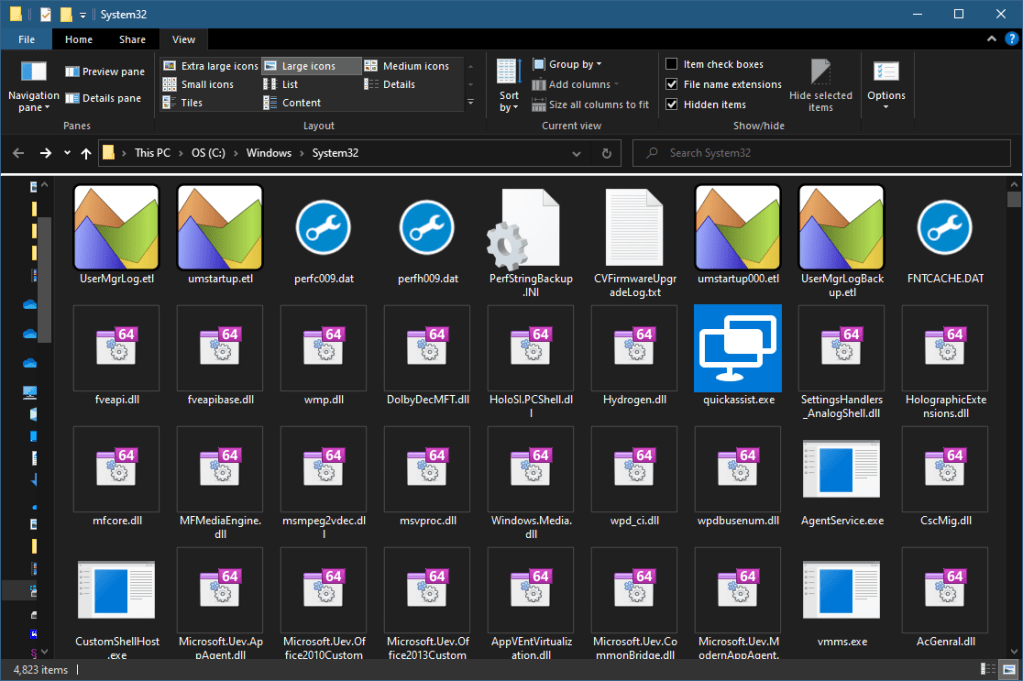
The Shell provides many opportunities for extensibility. An Icon Handler is one of the simplest, but still requires writing a full-fledged COM component that implements certain interfaces that the shell expects. Here is the result of using the Icon Handler DLL, showing the folders c:\Windows\System32 and c:\Windows\SysWow64 (large icons for easier visibility).
The first step is to create a new ATL project in Visual Studio. I’ll be using Visual Studio 2022, but any recent version would work essentially the same way (e.g. VS 2019, or 2017). Locate the ATL project type by searching in the terrible new project dialog introduced in VS 2019 and still horrible in VS 2022.
ATL (Active Template Library) is certainly not the only way to build COM components. “Pure” C++ would work as well, but ATL provides all the COM boilerplate such as the required exported functions, class factories, IUnknown implementations, etc. Since ATL is fairly “old”, it lacks the elegance of other libraries such as WRL and WinRT, as it doesn’t take advantage of C++11 and later features. Still, ATL has withstood the test of time, is robust, and full featured when it comes to COM, something I can’t say for these other alternatives.
If you can’t locate the ATL project, you may not have ATL installed propertly. Make sure the C++ Desktop development workload is installed using the Visual Studio Installer.
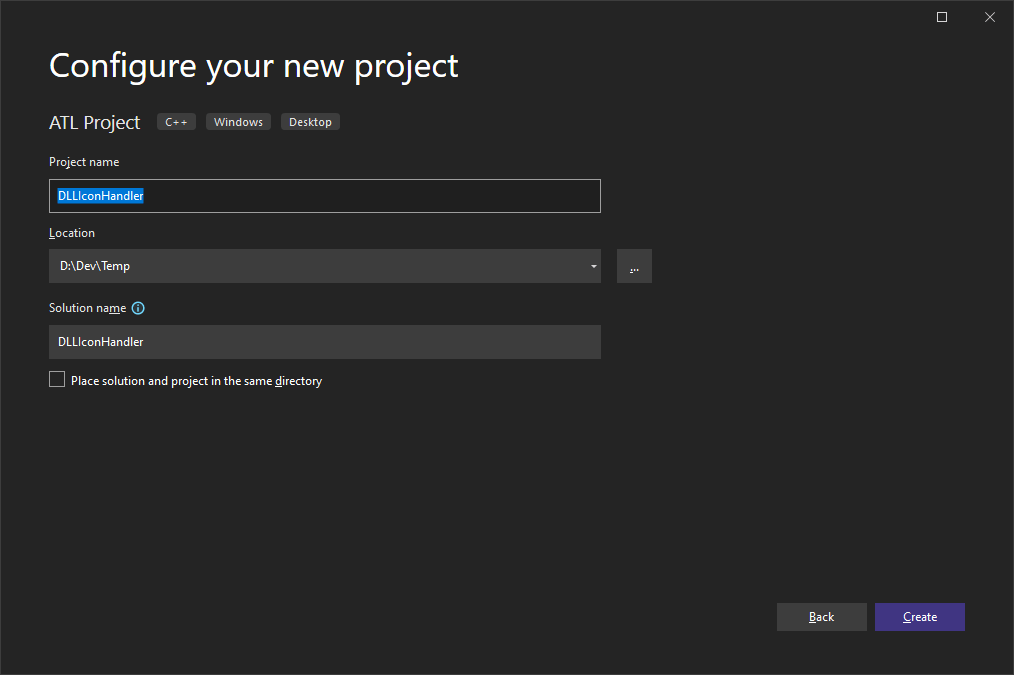
Click Next and select a project name and location:
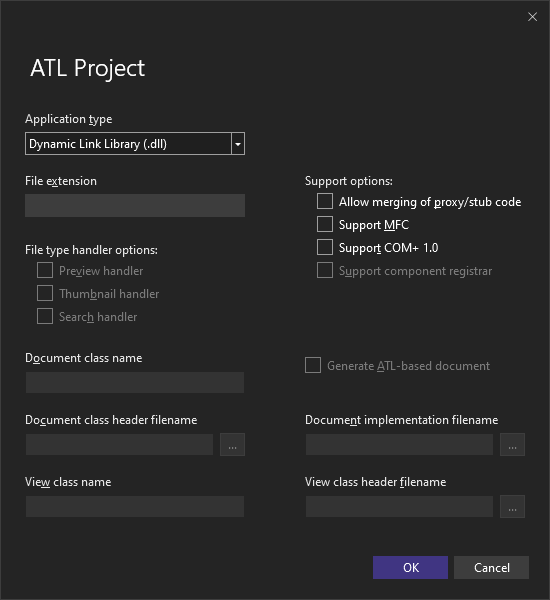
Click Create to launch the ATL project wizard. Leave all defaults (Dynamic Link Library) and click OK. Shell extensions of all kinds must be DLLs, as these are loaded by Explorer.exe. It’s not ideal in terms of Explorer’s stability, as aun unhandled exception can bring down the entire process, but this is necessary to get good performance, as no inter-process calls are made.
Two projects are created, named DllIconHandler and DllIconHandlerPS. The latter is a proxy/stub DLL that maybe useful if cross-apartment COM calls are made. This is not needed for shell extensions, so the PS project should simply be removed from the solution.
A detailed discussion of COM is way beyond the scope of this post.
The remaining project contains the COM DLL required code, such as the mandatory exported function, DllGetClassObject, and the other optional but recommended exports (DllRegisterServer, DllUnregisterServer, DllCanUnloadNow and DllInstall). This is one of the nice benefits of working with ATL project for COM component development: all the COM boilerplate is implemented by ATL.
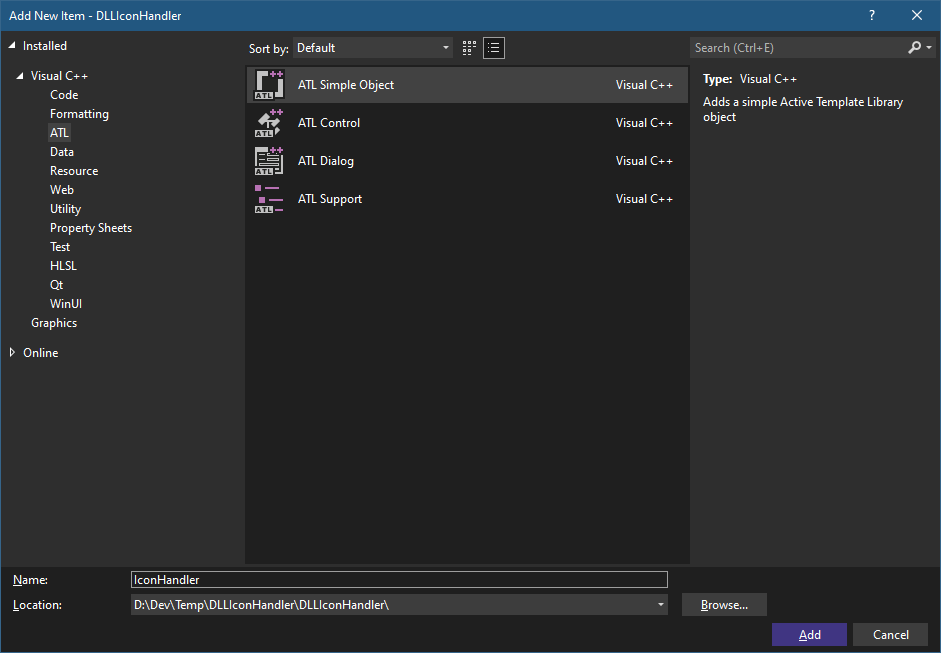
The next step is to add a COM class that will implement our icon handler. Again, we’ll turn to a wizard provided by Visual Studio that provides the fundamentals. Right-click the project and select Add Item… (don’t select Add Class as it’s not good enough). Select the ATL node on the left and ATL Simple Object on the right. Set the name to something like IconHandler:
Click Add. The ATL New Object wizard opens up. The name typed in the Add New Item dialog is used as a basis for generating names for source code elements (like the C++ class) and COM elements (that would be written into the IDL file and the resulting type library). Since we’re not going to define a new interface (we need to implement explorer-defined interfaces), there is no real need to tweak anything. You can click Finish to generate the class.
Three files are added with this last step: IconHandler.h, IconHandler.cpp and IconHandler.rgs. The C++ source files role is obvious – implementing the Icon Handler. The rgs file contains a script in an ATL-provided “language” indicating what information to write to the Registry when this DLL is registered (and what to remove if it’s unregistered).
The IDL (Interface Definition Language) file has also been modified, adding the definitions of the wizard generated interface (which we don’t need) and the coclass. We’ll leave the IDL alone, as we do need it to generate the type library of our component because the ATL registration code uses it internally.
If you look in IconHandler.h, you’ll see that the class implements the IIconHandler empty interface generated by the wizard that we don’t need. It even derives from IDispatch:
class ATL_NO_VTABLE CIconHandler :
	public CComObjectRootEx<CComSingleThreadModel>,
	public CComCoClass<CIconHandler, &CLSID_IconHandler>,
	public IDispatchImpl<IIconHandler, &IID_IIconHandler, &LIBID_DLLIconHandlerLib, /*wMajor =*/ 1, /*wMinor =*/ 0> {
We can leave the IDispatchImpl-inheritance, since it’s harmless. But it’s useless as well, so let’s delete it and also delete the interfaces IIconHandler and IDispatch from the interface map located further down:
class ATL_NO_VTABLE CIconHandler :
	public CComObjectRootEx<CComSingleThreadModel>,
	public CComCoClass<CIconHandler, &CLSID_IconHandler> {
public:
	BEGIN_COM_MAP(CIconHandler)
	END_COM_MAP()
(I have rearranged the code a bit). Now we need to add the interfaces we truly have to implement for an icon handler: IPersistFileand IExtractIcon. To get their definitions, we’ll add an #include for <shlobj_core.h> (this is documented in MSDN). We add the interfaces to the inheritance hierarchy, the COM interface map, and use the Visual Studio feature to add the interface members for us by right-clicking the class name (CIconHandler), pressing Ctrl+. (dot) and selecting Implement all pure virtuals of CIconHandler. The resulting class header looks something like this (some parts omitted for clarity) (I have removed the virtual keyword as it’s inherited and doesn’t have to be specified in derived types):
Now for the implementation. The IPersistFile interface seems non-trivial, but fortunately we just need to implement the Load method for an icon handler. This is where we get the file name we need to inspect. To check whether a DLL is 64 or 32 bit, we’ll add a simple enumeration and a helper function to the CIconHandler class:
The method receives the full path of the DLL we need to examine. How do we know that only DLL files will be delivered? This has to do with the registration we’ll make for the icon handler. We’ll register it for DLL file extensions only, so that other file types will not be provided. Calling GetModuleBitness (shown later) performs the real work of determining the DLL’s bitness and stores the result in m_Bitness (a data member of type ModuleBitness).
All that’s left to do is tell explorer which icon to use. This is the role of IExtractIcon. The Extract method can be used to provide an icon handle directly, which is useful if the icon is “dynamic” – perhaps generated by different means in each case. In this example, we just need to return one of two icons which have been added as resources to the project (you can find those in the project source code. This is also an opportunity to provide your own icons).
For our case, it’s enough to return S_FALSE from Extract that causes explorer to use the information returned from GetIconLocation. Here is its implementation:
The method’s purpose is to return the current (our icon handler DLL) module’s path and the icon index to use. This information is enough for explorer to load the icon itself from the resources. First, we get the module path to where our DLL has been installed. Since this doesn’t change, it’s only retrieved once (with GetModuleFileName) and stored in a static variable (s_ModulePath).
If this fails (unlikely) or the bitness could not be determined (maybe the file was not a PE at all, but just had such an extension), then we return S_FALSE. This tells explorer to use the default icon for the file type (DLL). Otherwise, we store 0 or 1 in piIndex, based on the IDs of the icons (0 corresponds to the lower of the IDs).
Finally, we need to set a flag inside pwFlags to indicate to explorer that this icon extraction is required for every file (GIL_PERINSTANCE). Otherwise, explorer calls IExtractIcon just once for any DLL file, which is the opposite of what we want.
The final piece of the puzzle (in terms of code) is how to determine whether a PE is 64 or 32 bit. This is not the point of this post, as any custom algorithm can be used to provide different icons for different files of the same type. For completeness, here is the code with comments:
CIconHandler::ModuleBitness CIconHandler::GetModuleBitness(PCWSTR path) {
    auto bitness = ModuleBitness::Unknown;
    //
    // open the DLL as a data file
    //
    auto hFile = ::CreateFile(path, GENERIC_READ, FILE_SHARE_READ,
        nullptr, OPEN_EXISTING, 0, nullptr);
    if (hFile == INVALID_HANDLE_VALUE)
        return bitness;

    //
    // create a memory mapped file to read the PE header
    //
    auto hMemMap = ::CreateFileMapping(hFile, nullptr, PAGE_READONLY, 0, 0, nullptr);
    ::CloseHandle(hFile);
    if (!hMemMap)
        return bitness;

    //
    // map the first page (where the header is located)
    //
    auto p = ::MapViewOfFile(hMemMap, FILE_MAP_READ, 0, 0, 1 << 12);
    if (p) {
        auto header = ::ImageNtHeader(p);
        if (header) {
            auto machine = header->FileHeader.Machine;
            bitness = header->Signature == IMAGE_NT_OPTIONAL_HDR64_MAGIC ||
                machine == IMAGE_FILE_MACHINE_AMD64 || machine == IMAGE_FILE_MACHINE_ARM64 ?
                ModuleBitness::Bit64 : ModuleBitness::Bit32;
        }
        ::UnmapViewOfFile(p);
    }
    ::CloseHandle(hMemMap);

    return bitness;
}
To make all this work, there is still one more concern: registration. Normal COM registration is necessary (so that the call to CoCreateInstanceissued by explorer has a chance to succeed), but not enough. Another registration is needed to let explorer know that this icon handler exists, and is to be used for files with the extension “DLL”.
Fortunately, ATL provides a convenient mechanism to add Registry settings using a simple script-like configuration, which does not require any code. The added keys/values have been placed in DllIconHandler.rgs like so:
This sets an icon handler in HKEY_CLASSES_ROOT\DllFile\ShellEx, where the IconHandler value specifies the CLSID of our component. You can find the CLSID in the IDL file where the coclass element is defined:
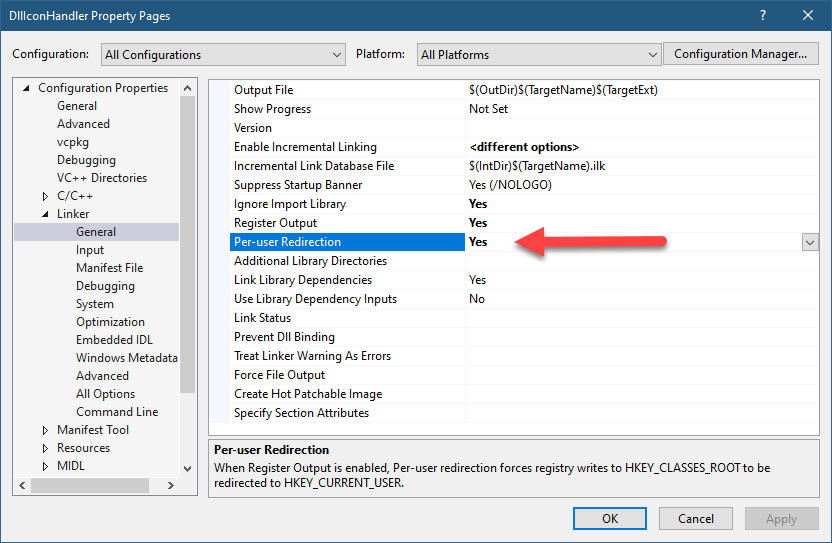
Replace your own CLSID if you’re building this project from scratch. Registration itself is done with the RegSvr32 built-in tool. With an ATL project, a successful build also causes RegSvr32 to be invoked on the resulting DLL, thus performing registration. The default behavior is to register in HKEY_CLASSES_ROOT which uses HKEY_LOCAL_MACHINE behind the covers. This requires running Visual Studio elevated (or an elevated command window if called from outside VS). It will register the icon handler for all users on the machine. If you prefer to register for the current user only (which uses HKEY_CURRENT_USER and does not require running elevated), you can set the per-user registration in VS by going to project properties, clinking on the Linker element and setting per-user redirection:
If you’re registering from outside VS, the per-user registration is achieved with:
regsvr32 /n /i:user <dllpath>
This is it! The full source code is available here.
I am announcing the next 5 day Windows Internals remote training to be held in January 2022, starting on the 24th according to the followng schedule:
Jan 24 – 2pm to 10pm (all times are based on London time)
Jan 25, 26, 27 – 2pm to 6pm
Jan 31 – 2pm to 10pm
Feb 1, 2, 3 – 2pm to 6pm
The syllabus can be found here (slight changes are possible if new important topics come up).
Cost and Registration
I’m keeping the cost of these training classes relatively low. This is to make these classes accessible to more people, especially in these unusual and challenging times.
Cost: 800 USD if paid by an individual, 1500 USD if paid by a company. Multiple participants from the same company are entitled to a discount (email me for the details). Previous students of my classes are entitled to a 10% discount.
To register, send an email to zodiacon@live.com and specify “Windows Internals Training” in the title. The email should include your name, contact email, time zone, and company name (if any).
Today I’m announcing a new training – COM (Component Object Model) Programming, to be held in November.
COM is a well established technology, debuted back in 1993, and is still very much in use. In fact, the Windows Runtime is based on an enhanced version of COM. There is quite a bit of confusion and misconceptions about COM, which is one reason I decided to offer this class.
The syllabus for the 3 day class can be found here. This is the first time I will be offering this class, and also will try a new format: 6 half-days instead of 3 full days.
When: November: 8, 9, 10, 11, 15, 16. 2pm to 6pm, UT. (Technically it’s more than 3 days, as with a full day there is a lunch break not present in half days). The class will be conducted remotely using Microsoft Teams or a similar platform.
What you need to know before the class: You should be comfortable using Windows on a Power User level. Concepts such as processes, threads, DLLs, and virtual memory should be understood fairly well. You should have experience writing code in C and some C++. You don’t have to be an expert, but you must know C and basic C++ to get the most out of the class. In case you have doubts, talk to me.
Obviously, participants in my Windows Internals and (especially) Windows System Programming classes have the required knowledge for the class.
We’ll start by looking at why COM was created in the first place, and then build clients and servers, digging into various mechanisms COM provides. See the syllabus for more details.
Registration will be different than previous classes: Early bird (paid by September 30th): 500 USD (if paid by an individual), 1100 USD (if paid by a company). Normal (paid after September 30th): 700USD (if paid by an individual), 1300 USD (if paid by a company).
To register, send an email to zodiacon@live.com with the title “COM Training”, and write the name(s), email(s) and time zone(s) of the participants.Multiple participants from the same company get a discount. Previous participants (individuals) of my classes get 10% off. I will reply with further instructions.
The relationship between processes and threads is fairly well known – a process contains one or more threads, running within the process, using process wide resources, like handles and address space.
Where do windows (those usually-rectangular elements, not the OS) come into the picture?
The relationship between a process, its threads, and windows, along with desktop and Window Stations, can be summarized in the following figure:
A process, threads, windows, desktops and a Window Station
A window is created by a thread, and that thread is designated as the owner of the window. The creating thread becomes a UI thread (if it’s the first User/GDI call it makes), getting a message queue (provided internally by Win32k.sys in the kernel). Every occurrence in the created window causes a message to be placed in the message queue of the owner thread. This means that if a thread creates 100 windows, it’s responsible for all these windows.
“Responsible” here means that the thread must perform something known as “message pumping” – pulling messages from its message queue and processing them. Failure to do that processing would lead to the infamous “Not Responding” scenario, where all the windows created by that thread become non-responsive. Normally, a thread can read its own message queue only – other threads can’t do it for that thread – this is a single threaded UI scheme used by the Windows OS by default. The simplest message pump would look something like this:
The call to GetMessagedoes not return until there is a message in the queue (filling up the MSG structure), or the WM_QUIT message has been retrieved, causing GetMessage to return FALSE and the loop exited. WM_QUIT is the message typically used to signal an application to close. Here is the MSG structure definition:
Once a message has been retrieved, the important call is to DispatchMessage, that looks at the window handle in the message (hwnd) and looks up the window class that this window instance is a member of, and there, finally, the window procedure – the callback to invoke for messages destined to these kinds of windows – is invoked, handling the message as appropriate or passing it along to default processing by calling DefWindowProc. (I may expand on that if there is interest in a separate post).
You can enumerate the windows owned by a thread by calling EnumThreadWindows. Let’s see an example that uses the Toolhelp API to enumerate all processes and threads in the system, and lists the windows created (owned) by each thread (if any).
We’ll start by creating a snapshot of all processes and threads (error handling mostly omitted for clarity):
#include <Windows.h>
#include <TlHelp32.h>
#include <unordered_map>
#include <string>

int main() {
	auto hSnapshot = ::CreateToolhelp32Snapshot(
        TH32CS_SNAPPROCESS | TH32CS_SNAPTHREAD, 0);
We’ll build a map of process IDs to names for easy lookup later on when we show details of a process:
PROCESSENTRY32 pe;
pe.dwSize = sizeof(pe);

// we can skip the idle process
::Process32First(hSnapshot, &pe);

std::unordered_map<DWORD, std::wstring> processes;
processes.reserve(500);

while (::Process32Next(hSnapshot, &pe)) {
	processes.insert({ pe.th32ProcessID, pe.szExeFile });
}
Now we loop through all the threads, calling EnumThreadWindows and showing the results:
THREADENTRY32 te;
te.dwSize = sizeof(te);
::Thread32First(hSnapshot, &te);

static int count = 0;

struct Data {
	DWORD Tid;
	DWORD Pid;
	PCWSTR Name;
};
do {
	if (te.th32OwnerProcessID <= 4) {
		// idle and system processes have no windows
		continue;
	}
	Data d{
        te.th32ThreadID, te.th32OwnerProcessID,
        processes.at(te.th32OwnerProcessID).c_str()
    };
	::EnumThreadWindows(te.th32ThreadID, [](auto hWnd, auto param) {
		count++;
		WCHAR text[128], className[32];
		auto data = reinterpret_cast<Data*>(param);
		int textLen = ::GetWindowText(hWnd, text, _countof(text));
		int classLen = ::GetClassName(hWnd, className, _countof(className));
		printf("TID: %6u PID: %6u (%ws) HWND: 0x%p [%ws] %ws\n",
			data->Tid, data->Pid, data->Name, hWnd,
			classLen == 0 ? L"" : className,
			textLen == 0 ? L"" : text);
		return TRUE;	// bring in the next window
		}, reinterpret_cast<LPARAM>(&d));
} while (::Thread32Next(hSnapshot, &te));
printf("Total windows: %d\n", count);
EnumThreadWindows requires the thread ID to look at, and a callback that receives a window handle and whatever was passed in as the last argument. Returning TRUE causes the callback to be invoked with the next window until the window list for that thread is complete. It’s possible to return FALSE to terminate the enumeration early.
I’m using a lambda function here, but only a non-capturing lambda can be converted to a C function pointer, so the param value is used to provide context for the lambda, with a Data instance having the thread ID, its process ID, and the process name.
The call to GetClassNamereturns the name of the window class, or type of window, if you will. This is similar to the relationship between objects and classes in object orientation. For example, all buttons have the class name “button”. Of course, the windows enumerated are only top level windows (have no parent) – child windows are not included. It is possible to enumerate child windows by calling EnumChildWindows.
Going the other way around – from a window handle to its owner thread and *its* owner process is possible with GetWindowThreadProcessId.
Desktops
A window is placed on a desktop, and is bound to it. More precisely, a thread is bound to a desktop once it creates its first window (or has any hook installed with SetWindowsHookEx). Before that happens, a thread can attach itself to a desktop by calling SetThreadDesktop.
Normally, a thread will use the “default” desktop, which is where a logged in user sees his or her windows appearing. It is possible to create additional desktops using the CreateDesktopAPI. A classic example is the desktopsSysinternals tool. See my post on desktops and windows stations for more information.
It’s possible to redirect a new process to use a different desktop (and optionally a window station) as part of the CreateProcess call. The STARTUPINFO structure has a member named lpDesktop that can be set to a string with the format “WindowStationName\DesktopName” or simply “DesktopName” to keep the parent’s window station. This could look something like this:
STARTUPINFO si = { sizeof(si) };
// WinSta0 is the interactive window station
WCHAR desktop[] = L"Winsta0\\MyOtherDesktop";
si.lpDesktop = desktop;
PROCESS_INFORMATION pi;
::CreateProcess(..., &si, &pi);
“WinSta0” is always the name of the interactive Window Station (one of its desktops can be visible to the user).
The following example creates 3 desktops and launches notepad in the default desktop and the other desktops:
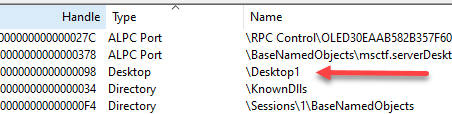
If yoy run the above function, you’ll see one Notepad window on your desktop. If you dig deeper, you’ll find 4 notepad.exe processes in Task Manager. The other three have created their windows in different desktops. Task Manager gives no indication of that, nor does the process list in Process Explorer. However, we see a hint in the list of handles of these “other” notepad processes. Here is one:
Handle named \Desktop1
Curiously enough, desktop objects are not stored as part of the kernel’s Object Manager namespace. If you double-click the handle, copy its address, and look it up in the kernel debugger, this is the result:
Notice the directory object address is zero – it’s not part of any directory. It has meaning in the context of its containing Window Station.
You might think that we can use the EnumThreadWindows as demonstrated at the beginning of this post to locate the other notepad windows. Unfortunately, access is restricted and those notepad windows are not listed (more on that possibly in a future post).
We can try a different approach by using yet another enumration function – EnumDesktopWindows. Given a powerful enough desktop handle, we can enumerate all top level windows in that desktop:
The lambda body is very similar to the one we’ve seen earlier. The difference is that we start with a window handle with no thread ID. But it’s fairly easy to get the owner thread and process with GetWindowThreadProcessId. Here is one way to invoke this function:
auto hDesktop = ::OpenDesktop(L"Desktop1", 0, FALSE, DESKTOP_ENUMERATE);
ListDesktopWindows(hDesktop);
A Notepad window is clearly there. We can repeat the same exercise with the other two desktops, which I have named “Desktop2” and “Desktop3”.
Can we view and interact with these “other” notepads? The SwitchDesktopAPI exists for that purpose. Given a desktop handle with the DESKTOP_SWITCHDESKTOP access, SwitchDesktop changes the input desktop to the requested desktop, so that input devices redirect to that desktop. This is exactly how the Sysinternals Desktops tool works. I’ll leave the interested reader to try this out.
Window Stations
The last piece of the puzzle is a Window Station. I assume you’ve read my earlier post and understand the basics of Window Stations.
A Thread can be associated with a desktop. A process is associated with a window station, with the constraint being that any desktop used by a thread must be within the process’ window station. In other words, a process cannot use one window station and any one of its threads using a desktop that belongs to a different window station.
A process is associated with a window station upon creation – the one specified in the STARTUPINFO structure or the creator’s window station if not specified. Still, a process can associate itself with a different window station by calling SetProcessWindowStation. The constraint is that the provided window station must be part of the current session. There is one window station per session named “WinSta0”, called the interactive window station. One of its desktop can be the input desktop and have user interaction. All other window stations are non-interactive by definition, which is perfectly fine for processes that don’t require any user interface. In return, they get better isolation, because a window station contains its own set of desktops, its own clipboard and its own atom table. Windows handles, by the way, have Window Station scope.
Just like desktops, window stations can be created by calling CreateWindowStation. Window stations can be enumerated as well (in the current session) with EnumerateWindowStations.
Summary
This discussion of threads, processes, desktops, and window stations is not complete, but hopefully gives you a good idea of how things work. I may elaborate on some advanced aspects of Windows UI system in future posts.
Today I’m announcing the next public remote Windows Kernel Programming training. This is a 5-day training scheduled for October: 4, 5, 7, 11, 13. Times: 12pm to 8pm, London Time.
The syllabus can be found here. It may be slightly modified by the time the class starts, but not by much. This is a development-heavy course, so be prepared to write lots of code!
Cost: 800 USD if paid by an individual, 1500 USD if paid by a company. Previous participants of the my classes get 10% discount. Multiple participants from the same company are entitled to a discount (email me for the details).
To register, send an email to zodiacon@live.com and specify “Windows Kernel Programming Training” in the title. The email should include your name, preferred email for communication, and company name (if any).
The training sessions will be recorded and provided to the participants.
Please read carefully the pre-requisites for this class. You should especially be comfortable coding in C (any C++ used in the class will be explained). In case of any doubt, talk to me. If you have any questions, feel free to shoot me an email, or DM me on twitter (@zodiacon) or Linkedin (https://www.linkedin.com/in/pavely/).
While teaching a Windows Internals class recently, I came across a situation which looked like a bug to me, but turned out to be something I didn’t know about – dynamic symbolic links.
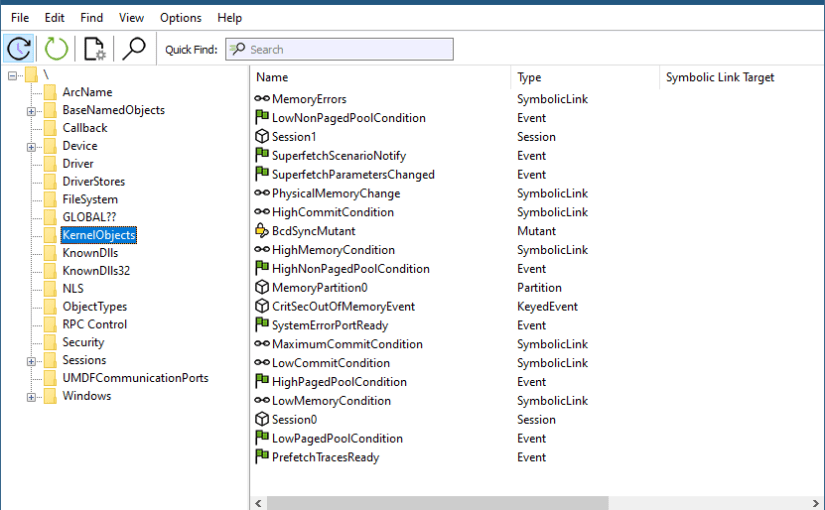
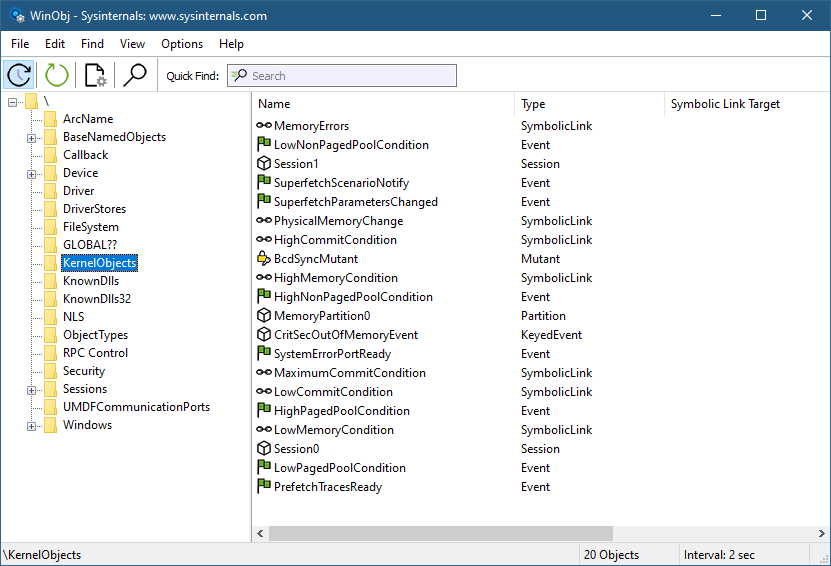
Symbolic links are Windows kernel objects that point to another object. The weird situation in question was when running WinObj from Sysinternals and navigating to the KenrelObjects object manager directory.
WinObj from Sysinternals
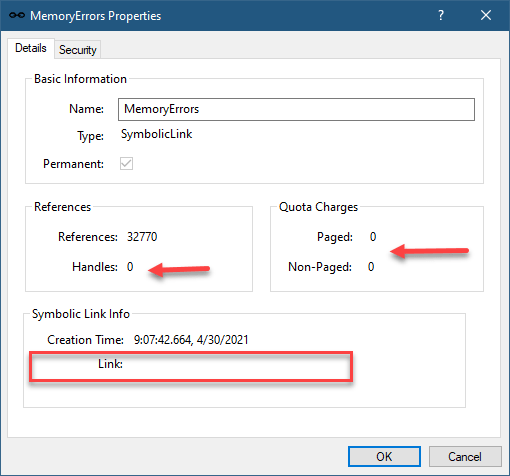
You’ll notice some symbolic link objects that look weird: MemoryErrors, PhysicalMemoryChange, HighMemoryCondition, LowMemoryCondition and a few others. The weird thing that is fairly obvious is that these symbolic link objects have empty targets. Double-clicking any one of them confirms no target, and also shows a curious zero handles, as well as quota change of zero:
Symbolic link properties
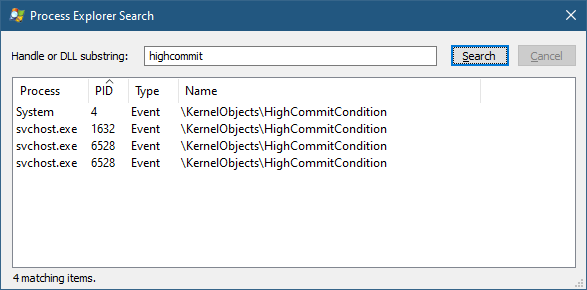
To add to the confusion, searching for any of them with Process Explorer yields something like this:
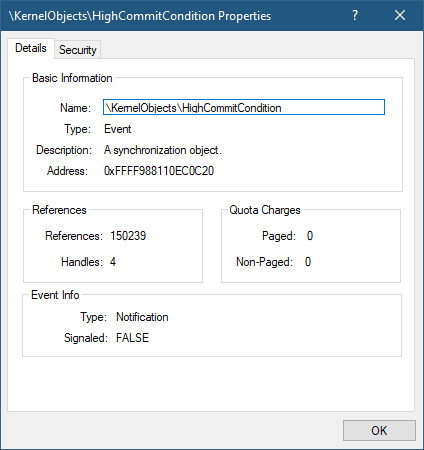
It seems these objects are events, and not symbolic links!
My first instinct was that there is a bug in WinObj (I rewrote it recently for Sysinternals, so was certain I introduced a bug). I ran an old WinObj version, but the result was the same. I tried other tools with similar functionality, and still got the same results. Maybe a bug in Process Explorer? Let’s see in the kernel debugger:
Definitely an event and not a symbolic link. What’s going on? I debugged it in WinObj, and indeed the reported object type is a symbolic link. Maybe it’s a bug in the NtQueryDirectoryObject used to query a directory object for an object.
I asked Mark Russinovich, could there be a bug in Windows? Mark remembered that this is not a bug, but a feature of symbolic links, where objects can be created/resolved dynamically when accessing the symbolic link. Let’s see if we can see something in the debugger:
Clearly, there is target, but notice the flags value 0x10. This is the flag indicating the symbolic link is a dynamic one. To get further information, we need to look at the object with a “symbolic link lenses” by using the data structure the kernel uses to represent symbolic links:
The Callback member shows the function that is being called (MiResolveMemoryEvent) that “resolves” the symbolic link to the relevant event. There are currently 11 such events, their names visible with the following:
I am announcing the next Windows Internals remote training to be held in July 2021 on the 12, 14, 15, 19, 21. Times: 11am to 7pm, London time.
The syllabus can be found here (slight changes are possible if new important topics come up).
Cost and Registration
I’m keeping the cost of these training classes relatively low. This is to make these classes accessible to more people, especially in these unusual and challenging times.
Cost: 800 USD if paid by an individual, 1500 USD if paid by a company. Multiple participants from the same company are entitled to a discount (email me for the details). Previous students of my classes are entitled to a 10% discount.
To register, send an email to zodiacon@live.com and specify “Windows Internals Training” in the title. The email should include your name, contact email, and company name (if any).
Later this year I plan a Windows Kernel Programming class. Stay tuned!
Normally, a process created by another process in Windows establishes a parent-child relationship between them. This relationship can be viewed in tools such as Process Explorer. Here is an example showing FoxitReader as a child process of Explorer, implying Explorer created FoxitReader. That must be the case, right?
First, it’s important to emphasize that there is no dependency between a child and a parent process in any way. For example, if the parent process terminates, the child is unaffected. The parent is used for inheriting many properties of the child process, such as current directory and environment variables (if not specified explicitly).
Windows stores the parent process ID in the process management object of the child in the kernel for posterity. This also means that the process ID, although correct, could point to a “wrong” process. This can happen if the parent dies, and the process ID is reused.
Process Explorer does not get confused in such a case, and left-justifies the process in its tree view. It knows to check the process creation time. If the “parent” was created after the child, there is no way it could be the real parent. The parent process ID can still be viewed in the process properties:
Notice the “<Non-existent Parent>” indication. Although the parent process ID is known (13636 in this case), there is no other information on that process, as it does not exist anymore, and its ID may or may not have been reused.
By the way, don’t be alarmed that Explorer has no living parent. This is expected, as it’s normally created by a process running the image UserInit.exe, that exits normally after finishing its duties.
Returning to the question raised earlier – is the parent process always the actual creator? Not necessarily.
The canonical example is when a process is launched elevated (for example, by right-clicking it in Explorer and selecting “Run as Administrator”. Here is a diagram showing the major components in an elevation procedure:
First, the user right-clicks in Explorer and asks to run some App.Exe elevated. Explorer calls ShellExecute(Ex) with the verb “runas” that requests this elevation. Next, The AppInfo service is contacted to perform the operation if possible. It launches consent.exe, which shows the Yes/No message box (for true administrators) or a username/password dialog to get an admin’s approval for the elevation. Assuming this is granted, the AppInfo service calls CreateProcessAsUser to launch the App.exe elevated. To maintain the illusion that Explorer created App.exe, it stores the parent ID of Explorer into App.exe‘s new process management block. This makes it look as if Explorer had created App.exe, but is not really what happened. However, that “re-parenting” is probably a good idea in this case, giving the user the expected result.
Is it possible to specify a different parent when creating a process with CreateProcess?
It is indeed possible by using a process attribute. Here is a function that does just that (with minimal error handling):
bool CreateProcessWithParent(DWORD parentId, PWSTR commandline) {
    auto hProcess = ::OpenProcess(PROCESS_CREATE_PROCESS, FALSE, parentId);
    if (!hProcess)
        return false;

    SIZE_T size;
    //
    // call InitializeProcThreadAttributeList twice
    // first, get required size
    //
    ::InitializeProcThreadAttributeList(nullptr, 1, 0, &size);

    //
    // now allocate a buffer with the required size and call again
    //
    auto buffer = std::make_unique<BYTE[]>(size);
    auto attributes = reinterpret_cast<PPROC_THREAD_ATTRIBUTE_LIST>(buffer.get());
    ::InitializeProcThreadAttributeList(attributes, 1, 0, &size);

    //
    // add the parent attribute
    //
    ::UpdateProcThreadAttribute(attributes, 0,
        PROC_THREAD_ATTRIBUTE_PARENT_PROCESS,
        &hProcess, sizeof(hProcess), nullptr, nullptr);

    STARTUPINFOEX si = { sizeof(si) };
    //
    // set the attribute list
    //
    si.lpAttributeList = attributes;
    PROCESS_INFORMATION pi;

    //
    // create the process
    //
    BOOL created = ::CreateProcess(nullptr, commandline, nullptr, nullptr,
        FALSE, EXTENDED_STARTUPINFO_PRESENT, nullptr, nullptr,
        (STARTUPINFO*)&si, &pi);

    //
    // cleanup
    //
    ::CloseHandle(hProcess);
    ::DeleteProcThreadAttributeList(attributes);

    return created;
}
The first step is to open a handle to the “prospected” parent by calling OpenProcess with the PROCESS_CREATE_PROCESS access mask. This means you cannot choose an arbitrary process, you must have at least that access to the process. Protected (and protected light) processes, for example, cannot be used as parents in this way, as PROCESS_CREATE_PROCESS cannot be obtained for such processes.
Next, an attribute list is created with a single attribute of type PROC_THREAD_ATTRIBUTE_PARENT_PROCESS by calling InitializeProcThreadAttributeList followed by UpdateProcThreadAttribute to set up the parent handle. Finally, CreateProcess is called with the extended STARTUPINFOEX structure where the attribute list is stored. CreateProcess must know about the extended version by specifying EXTENDED_STARTUPINFO_PRESENT in its flags argument.
Here is an example where Excel supposedly created Notepad (it really didn’t). The “real” process creator is nowhere to be found.
The obvious question perhaps is whether there is any way to know which process was the real creator?
The only way that seems to be available is for kernel drivers that register for process creation notifications with PsSetCreateProcessNotifyRoutineEx (or one of its variants). When such a notification is invoked in the driver, the following structure is provided:
On the one hand, there is the ParentProcessId member (although it’s typed as HANDLE, it actually the parent process ID). This is the parent process as set by CreateProcess based on the code snippet in CreateProcessWithParent.
However, there is also the CreatingThreadId member of type CLIENT_ID, which is a small structure containing a process and thread IDs. This is the real creator. In most cases it’s going to have the same process ID as ParentProcessId, but not in the case where a different parent has been specified.
After this point, that information goes away, leaving only the parent ID, as it’s the one stored in the EPROCESS kernel structure of the child process.
Update: (thanks to @jdu2600)
The creator is available by listening to the process create ETW event, where the creator is the one raising the event. Here is a snapshot from my own ProcMonXv2:









 Pavel Yosifovich